
Trail Reports
Generate a printable PDF of your trail list, optionally filtered by activity or status.
Print or save a PDF trail report from the Trails menu. The report can cover the whole list, one activity, or one status.
The report includes your trail system name and the date, any current notices, the latest snow report and surface conditions, and a table with one row per trail: name and status, difficulty rating, distance, activities (each colored by its status), and surface conditions. Hidden trails are left out. It is generated as a letter-size PDF named trail-hub-report.pdf.
#Steps
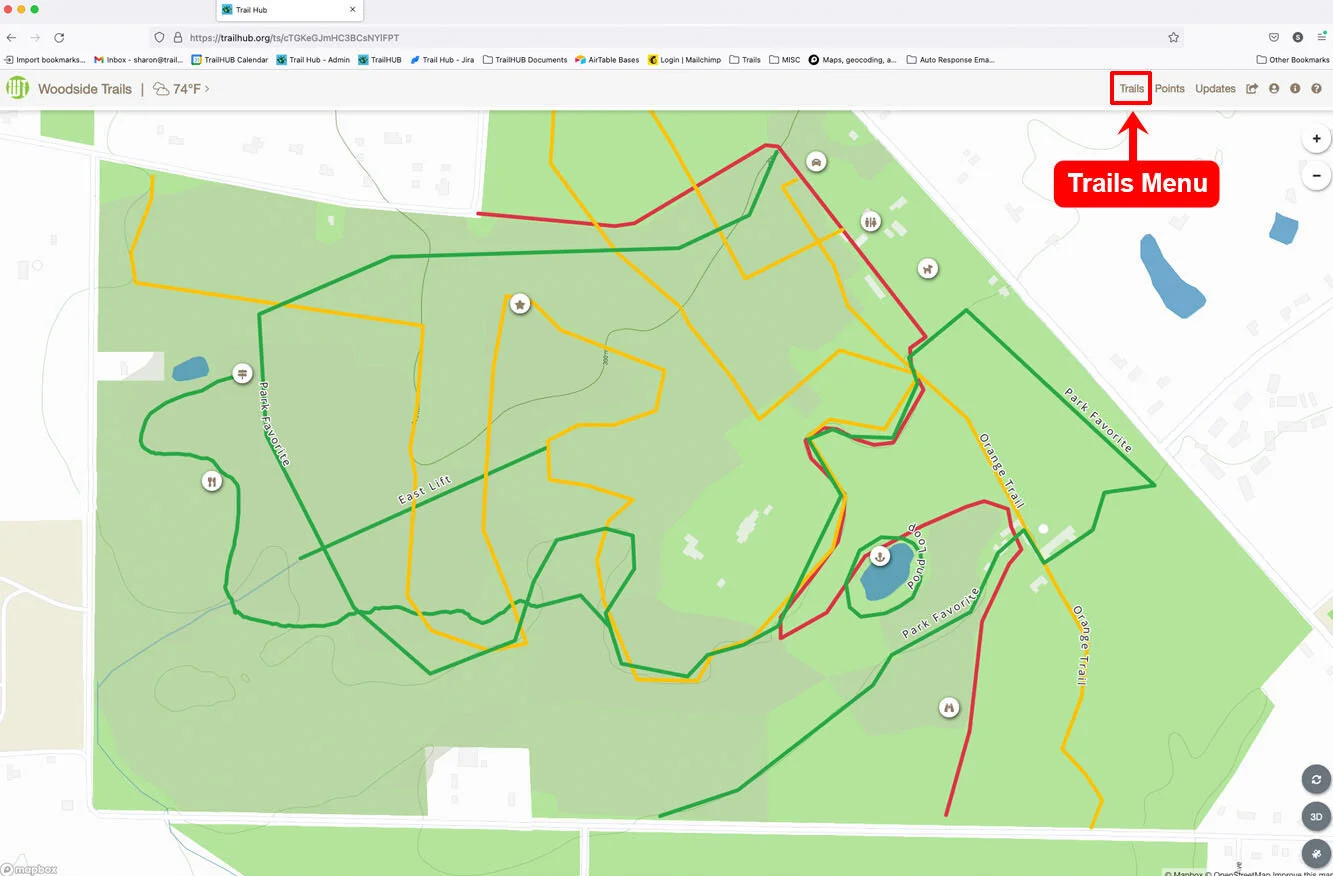
Click Trails in the top navigation bar.
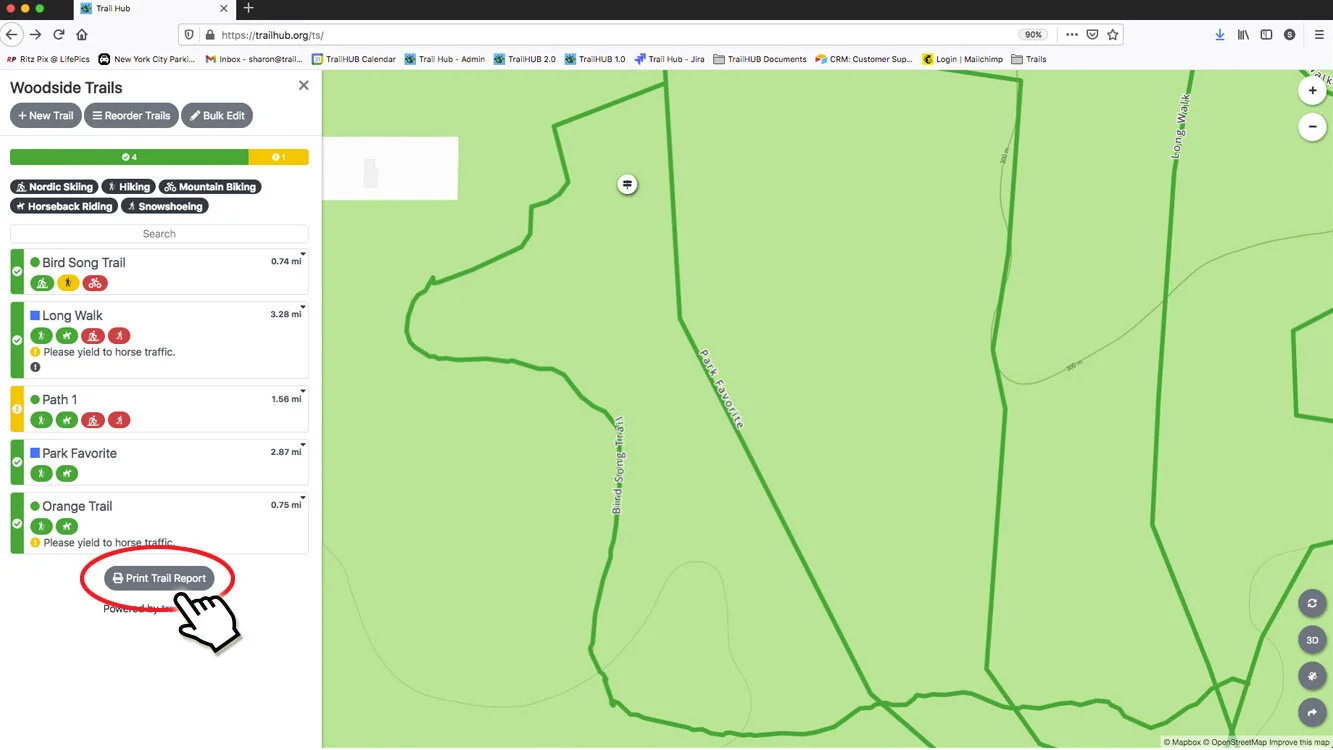
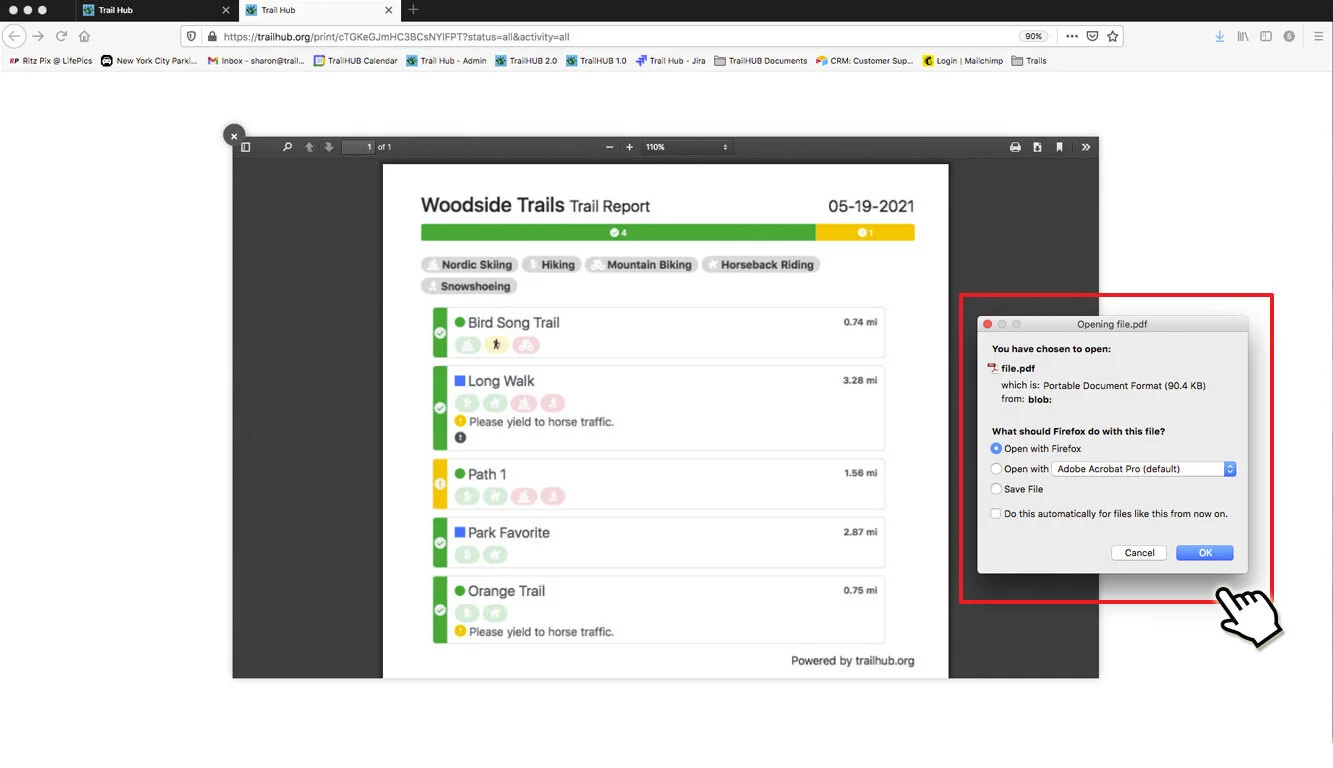
To report on all trails, click Print Trail Report at the bottom of the trail list. The report opens in a new tab with a preview; download it from there and print as needed.
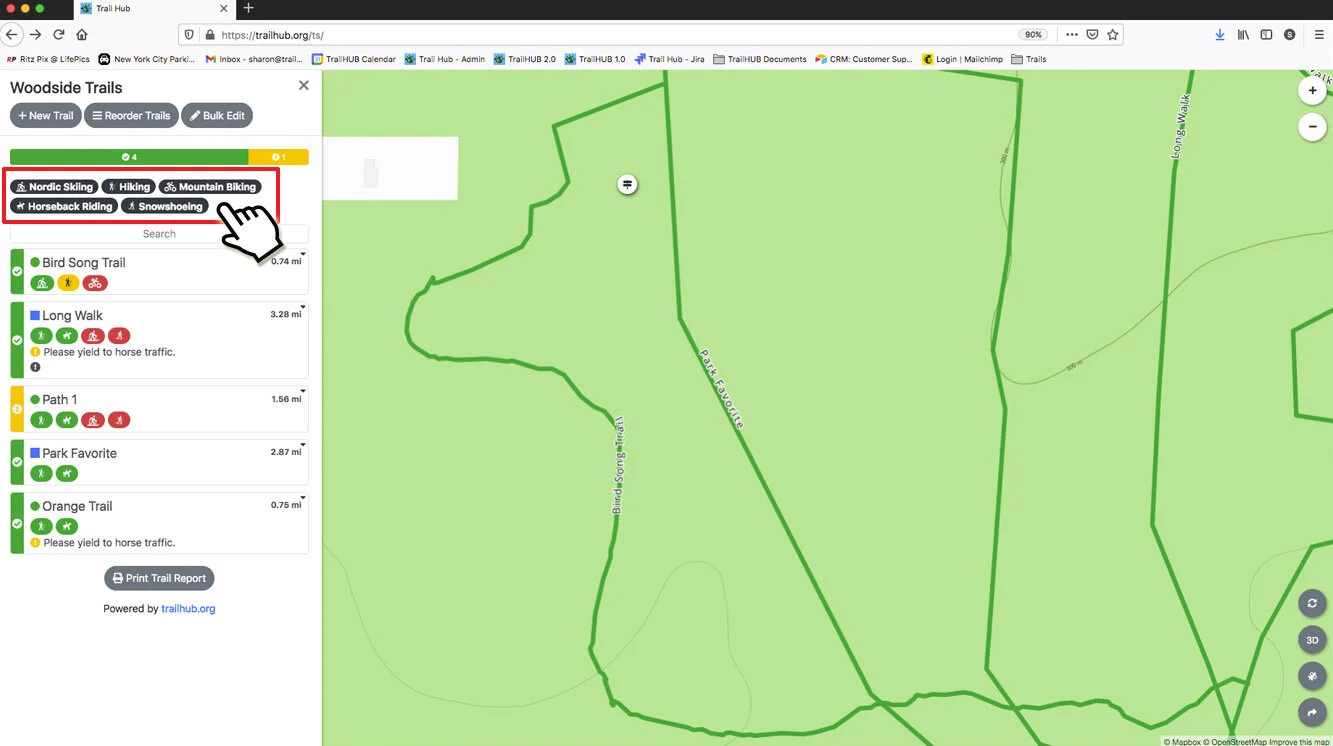
To report on one activity, first filter the list with the Activities dropdown, then click Print Trail Report.
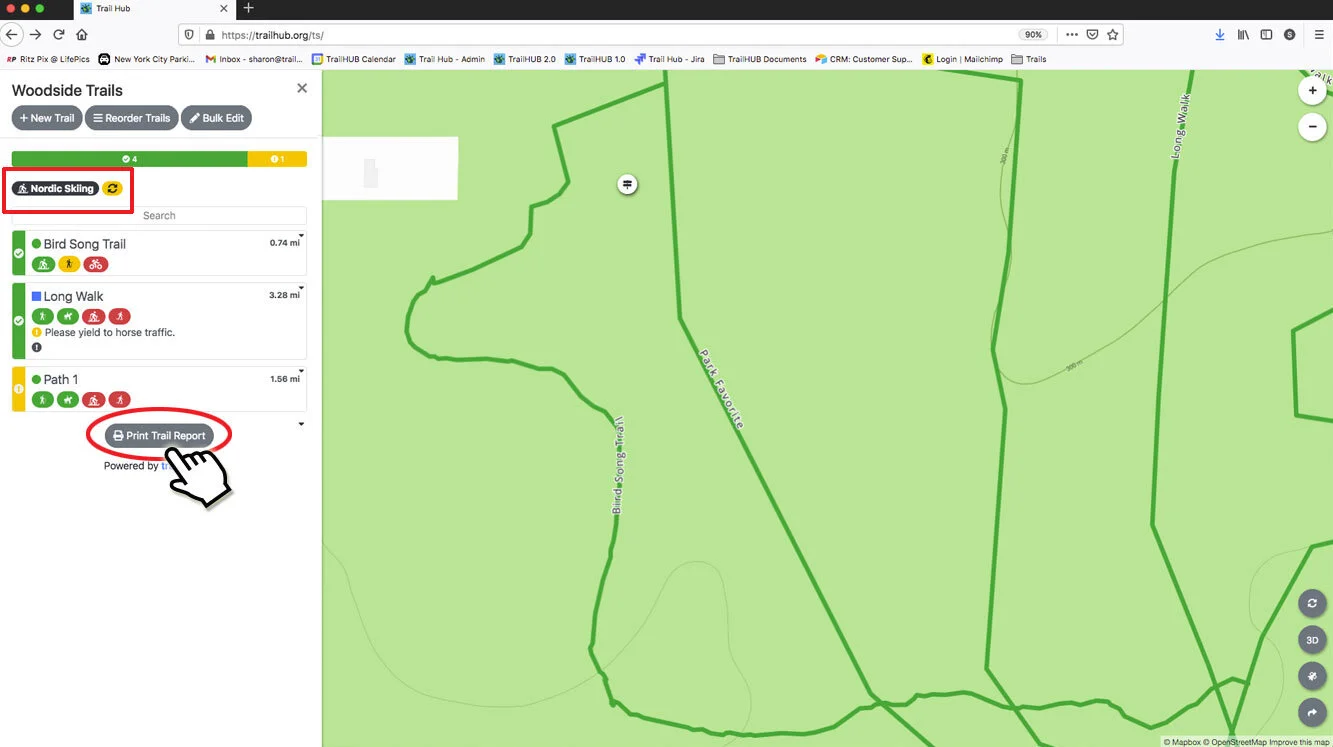
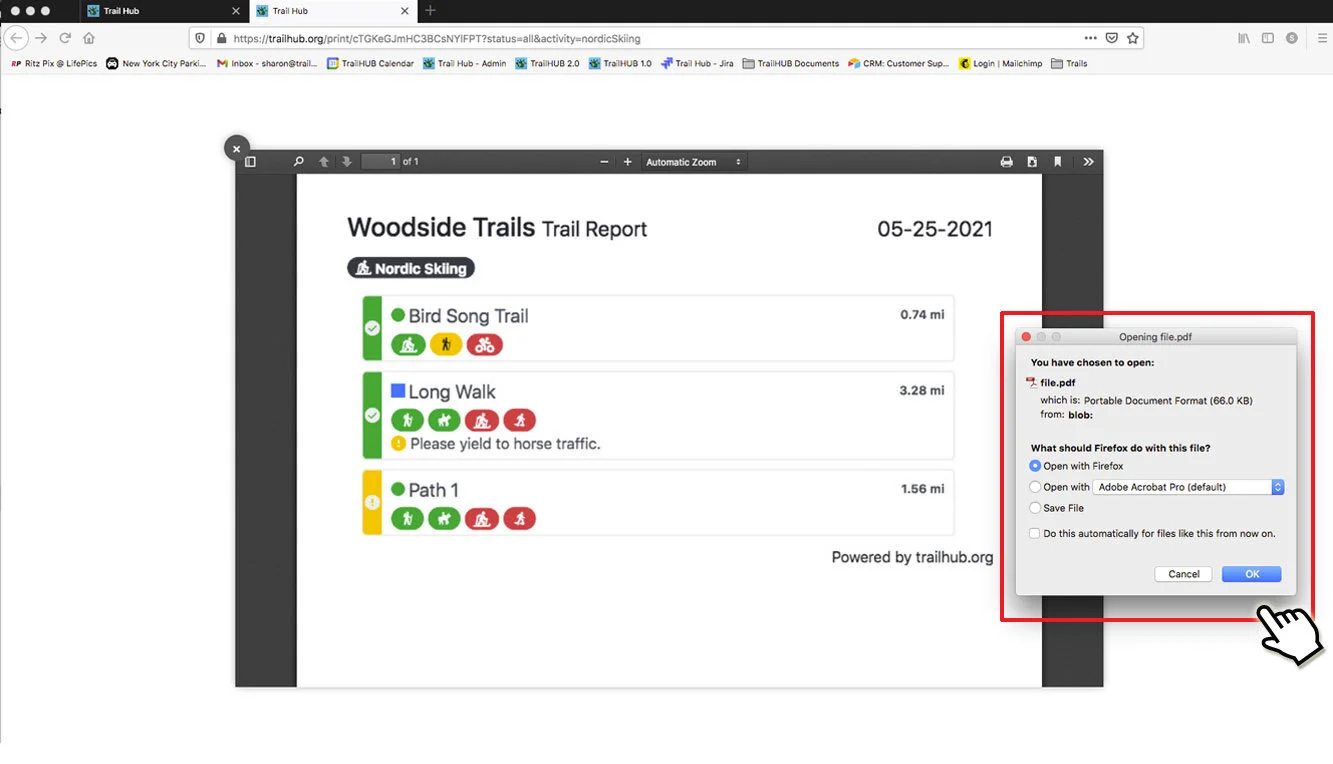
To report on one status (Open, Caution, or Closed), first click that count in the status bar at the top of the list, then click Print Trail Report.
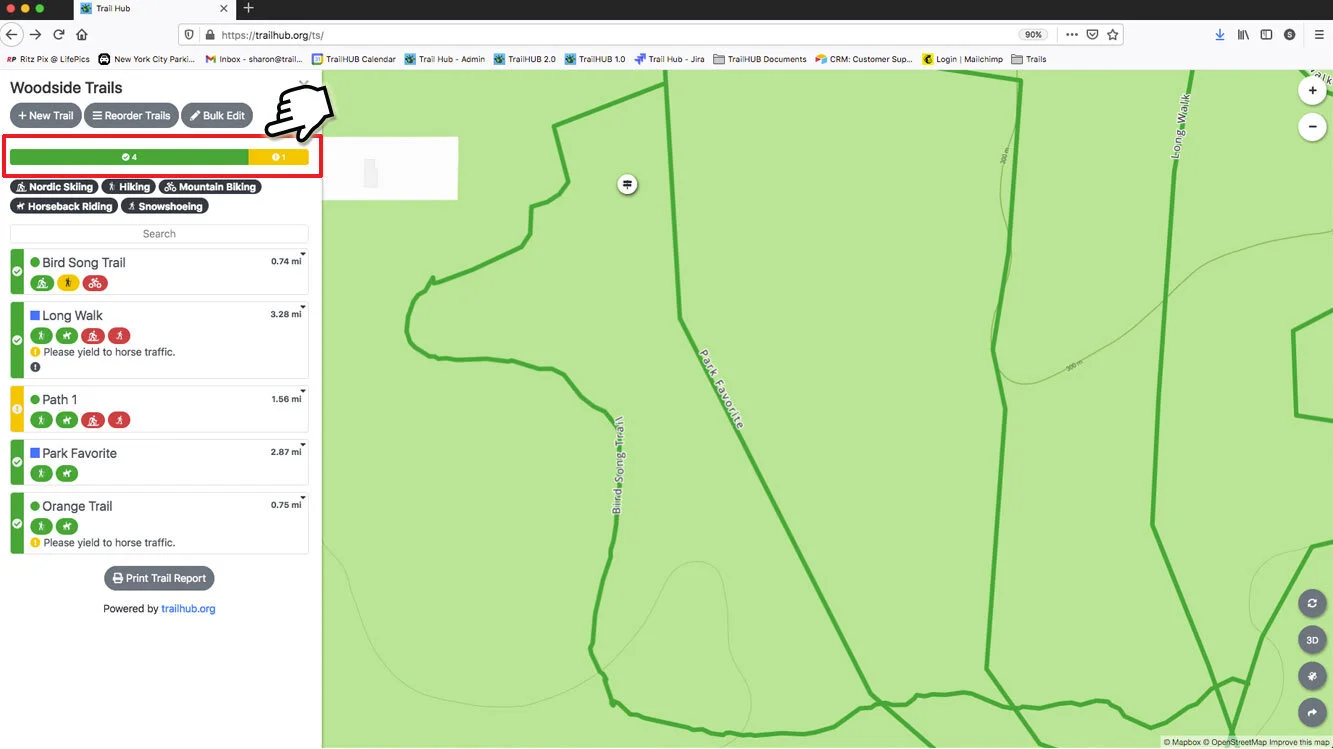
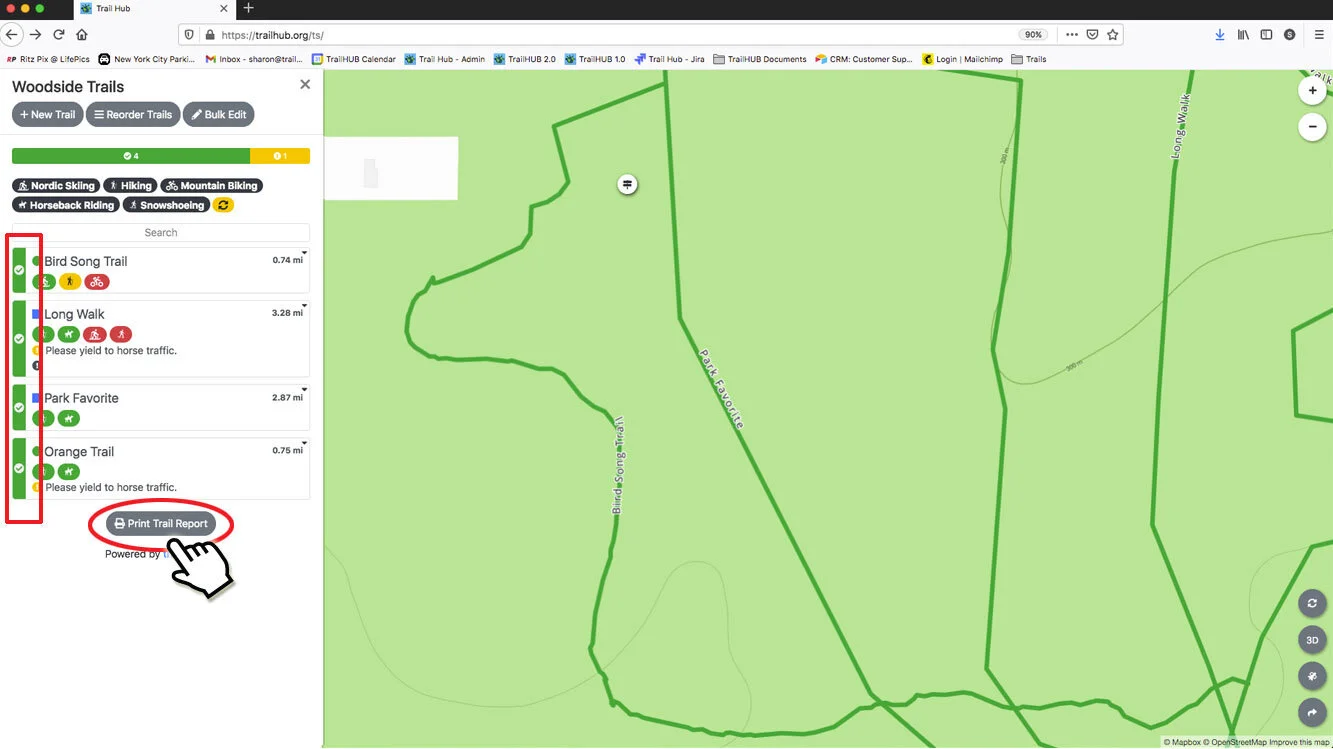
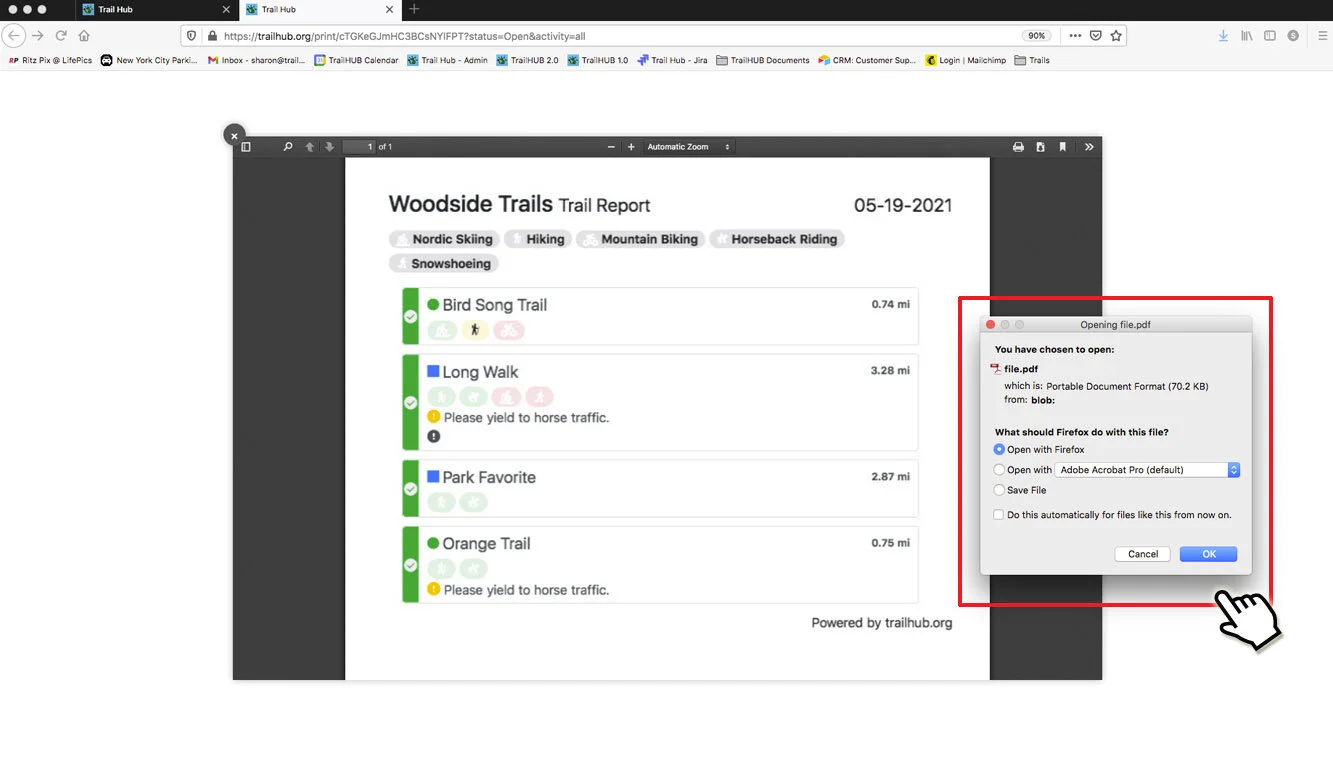
The current filter is passed to the report in its URL (/print/<trail-system-id>?status=Open&activity=all, for example), so you can bookmark a report link for a filter you print regularly. See View and search trails for the filters.