
Bulk Edit Trails
Change the status, difficulty, activities, categories, or hidden setting of many trails in one operation.
Bulk edit applies one change to a group of trails at the same time. You can update one of these values per operation:
- Status
- Difficulty
- Activities
- Categories
- Trail Hidden
#Steps
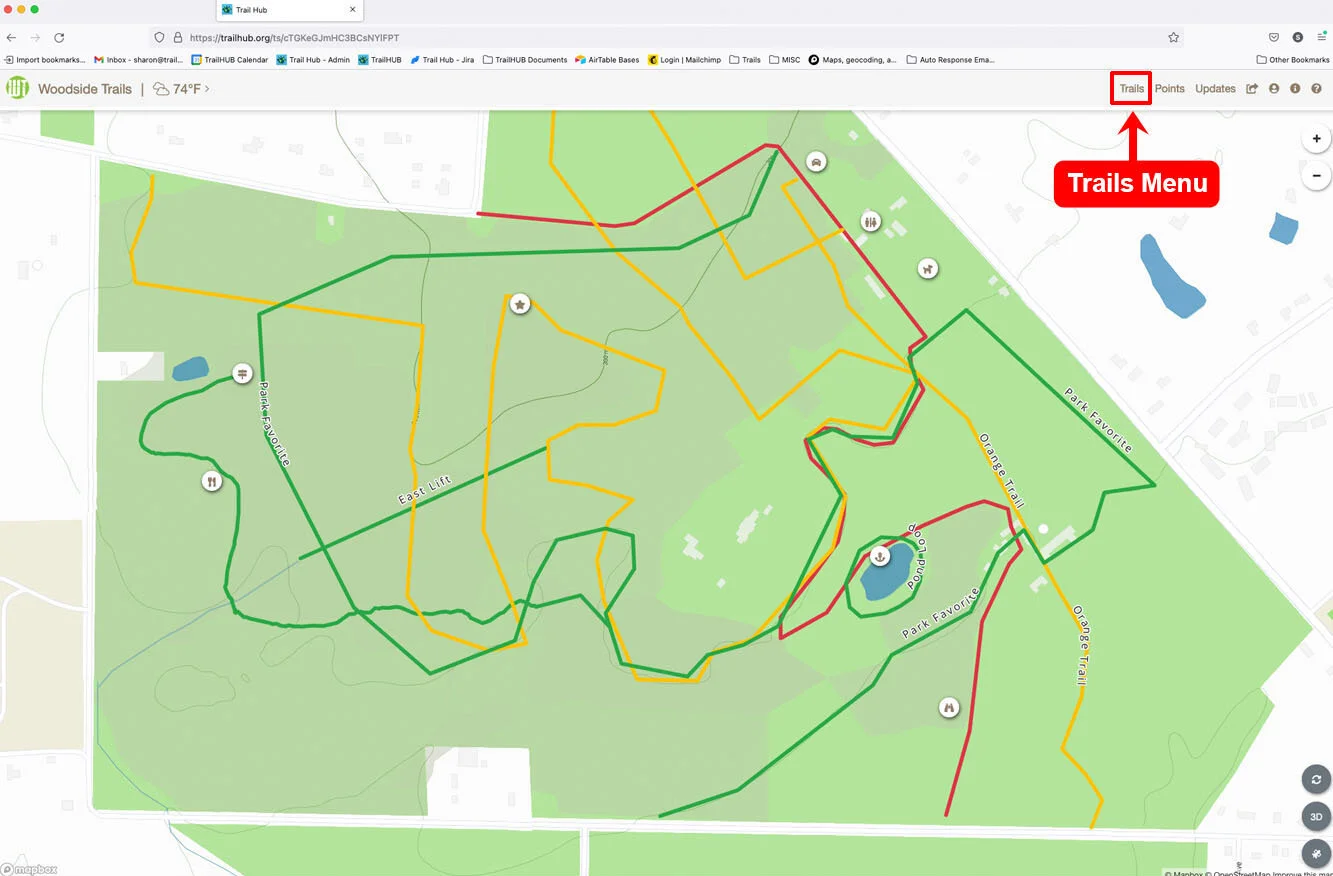
Click Trails in the top navigation bar.
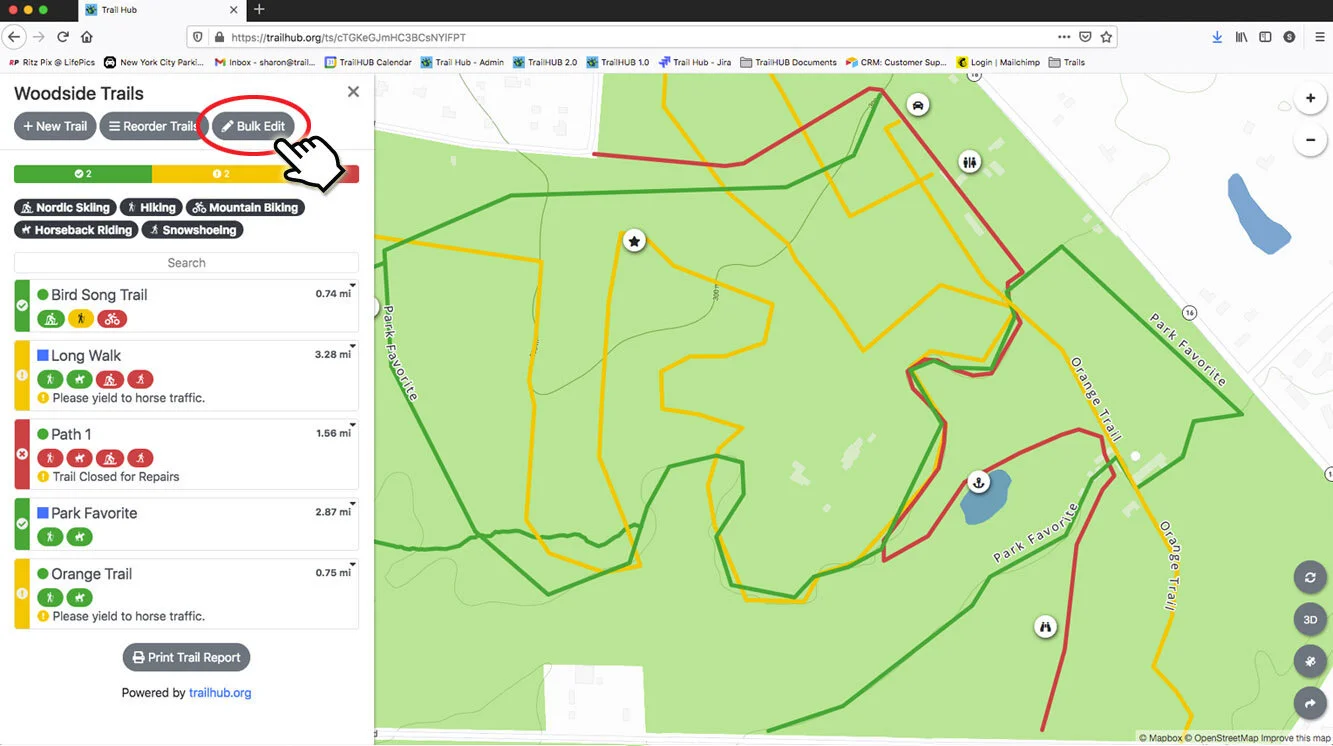
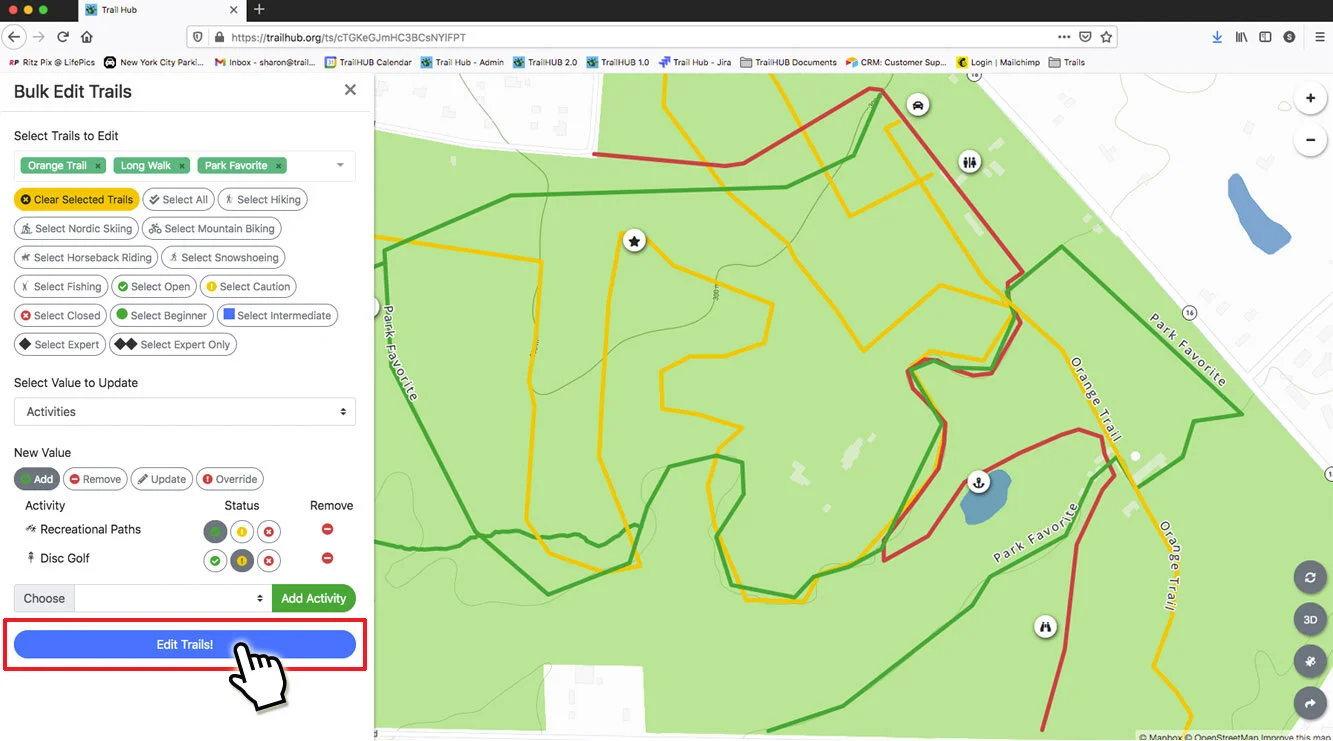
Click Bulk Edit at the top of the Trails drawer.
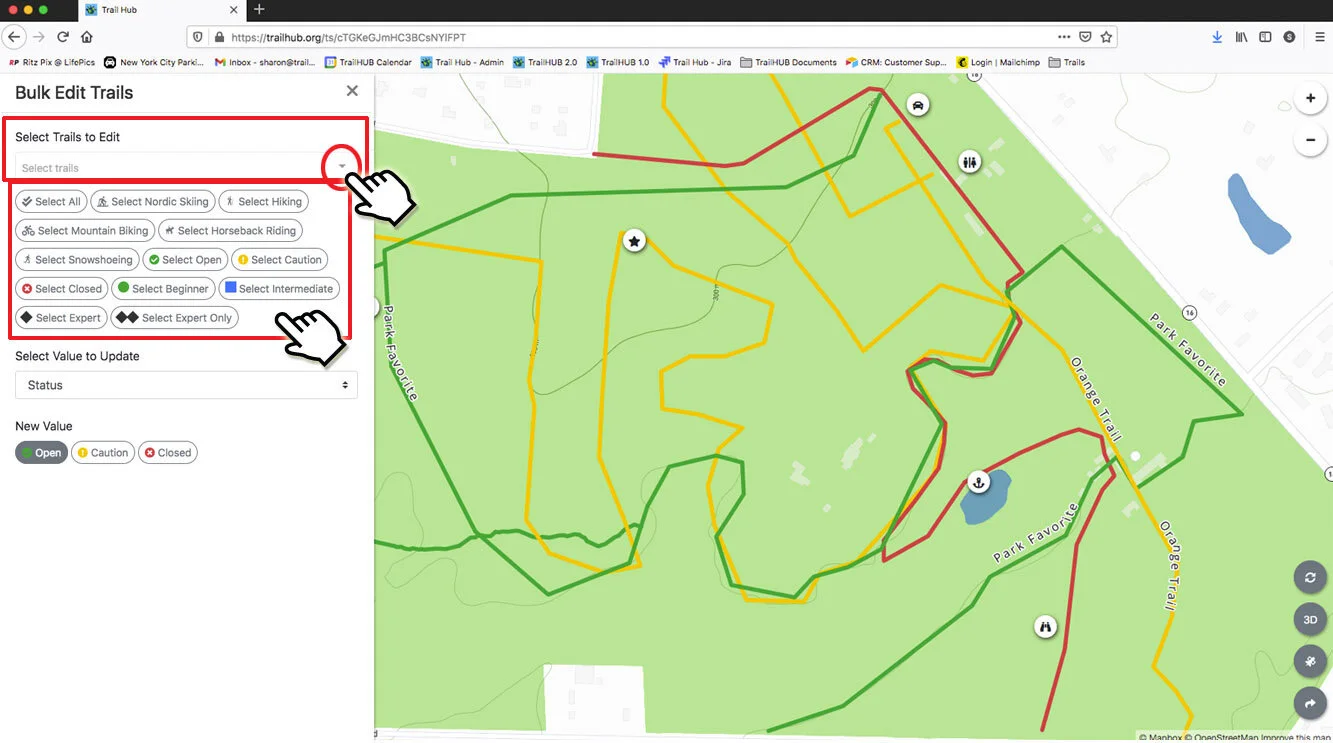
Select the trails to edit. You can combine these methods:
- Pick trails one at a time from the Select trails dropdown.
- Click Select All.
- Click a Select [activity] button to add every trail with that activity. This also preloads that activity in the activities editor below.
- Click Select Open, Select Caution, or Select Closed to add trails by overall status.
- Click Select Beginner, Select Intermediate, Select Expert, or Select Expert Only to add trails by difficulty.
- Click a category button to add every trail in that category.
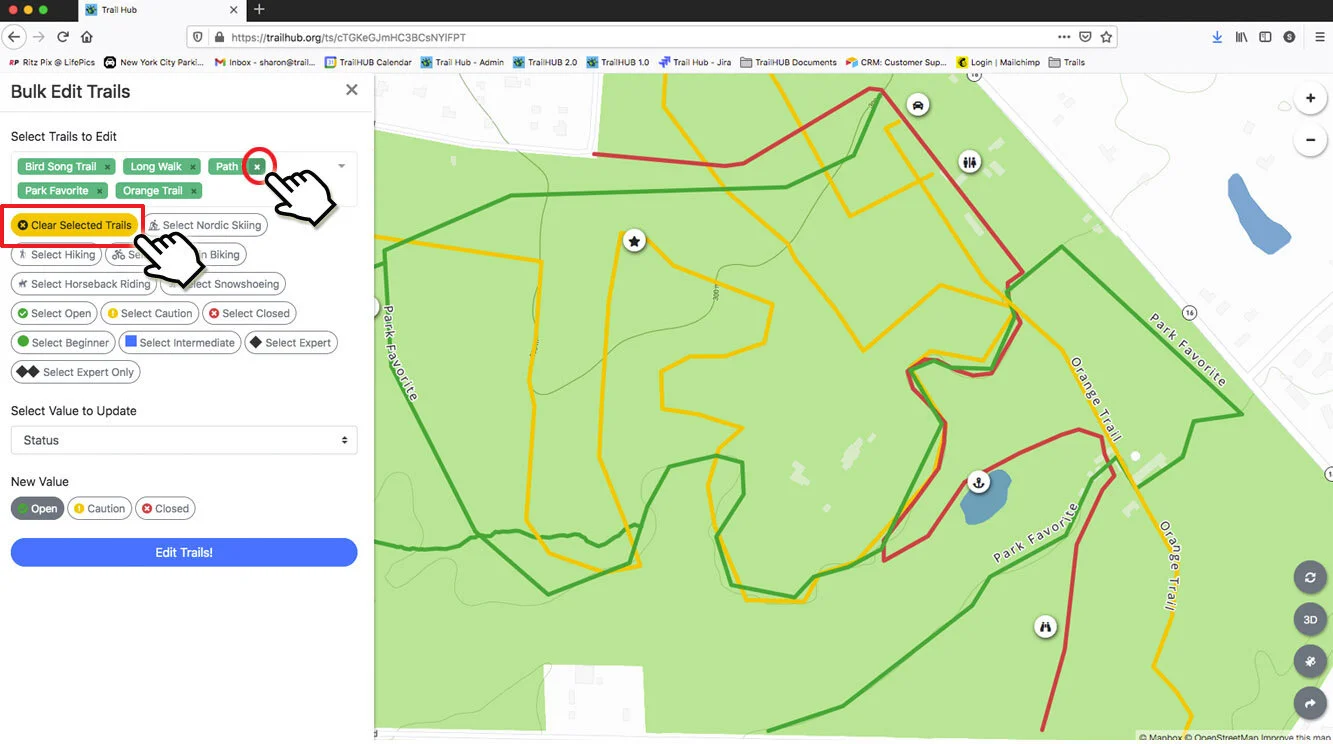
To remove a trail from the selection, click the x on its tag. To start over, click Clear Selected Trails.
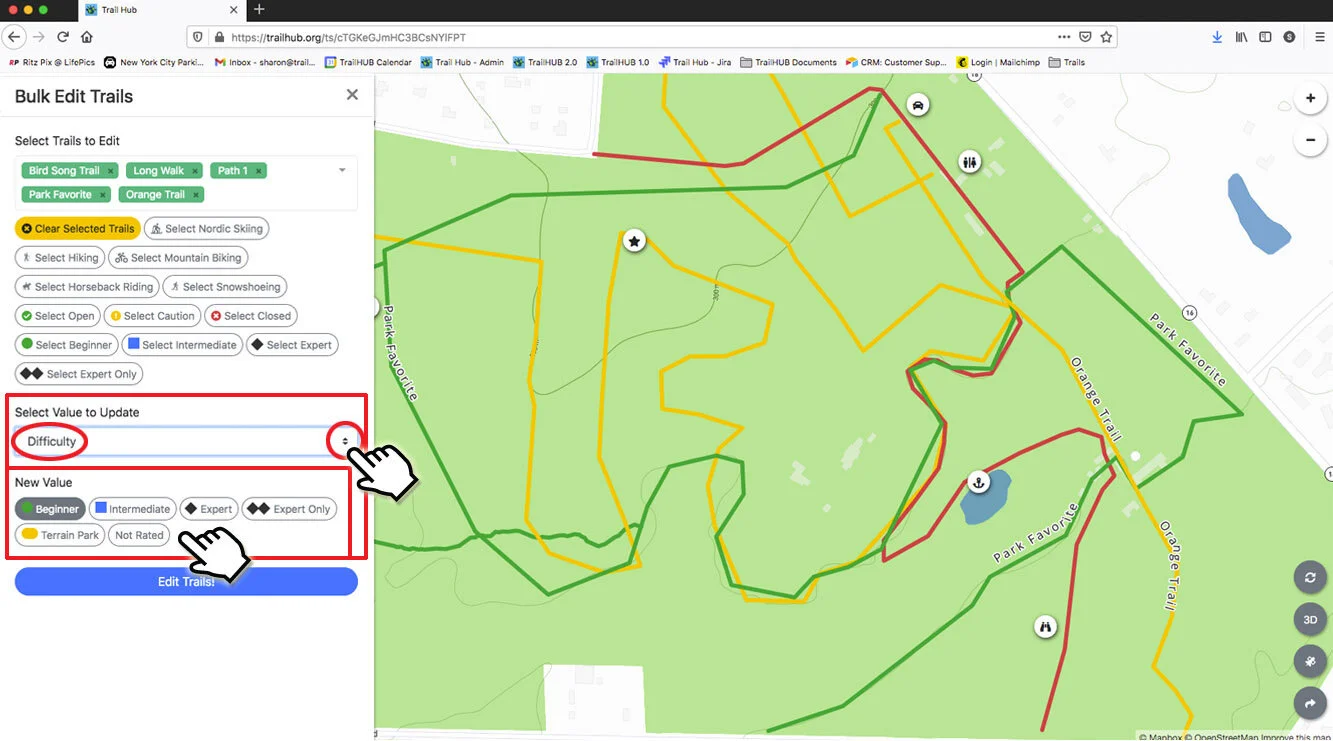
Under Select Value to Update, choose what to change, then set the New Value as described below.
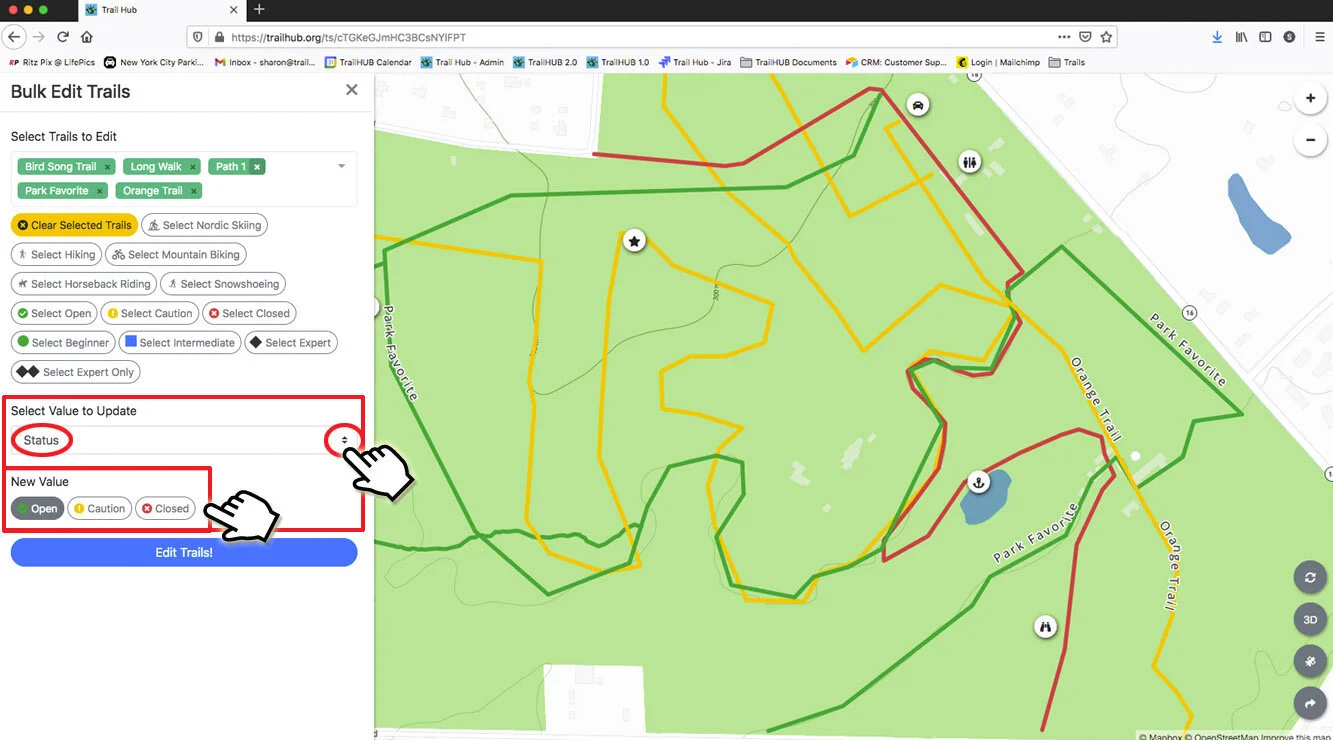
Click Bulk Edit Trails.
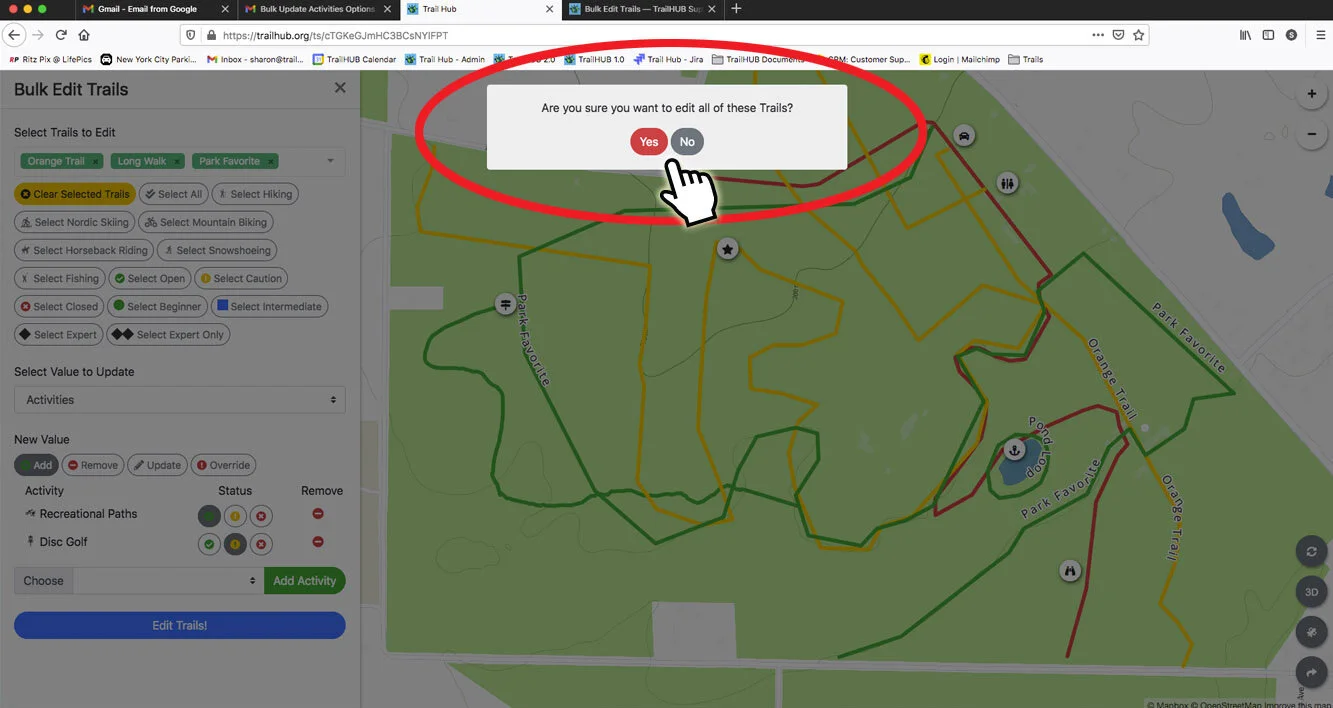
Confirm the prompt Are you sure you want to edit all of these Trails? Click Yes to apply or No to go back.
#Values you can update
#Status
Choose Open, Caution, Closed, or None. Setting Closed also sets every activity on each selected trail to Closed. See Trail statuses explained.
#Difficulty
Choose Beginner, Intermediate, Expert, Expert Only, Terrain Park, or Not Rated.
#Activities
First choose a mode:
- Add adds the listed activities to each selected trail. If a trail already has one of the activities, that activity is left as it is.
- Remove removes the listed activities from each selected trail.
- Update replaces the status of the listed activities on trails that already have them. Trails without the activity are not changed.
- Override deletes all activities on the selected trails and replaces them with the listed activities.
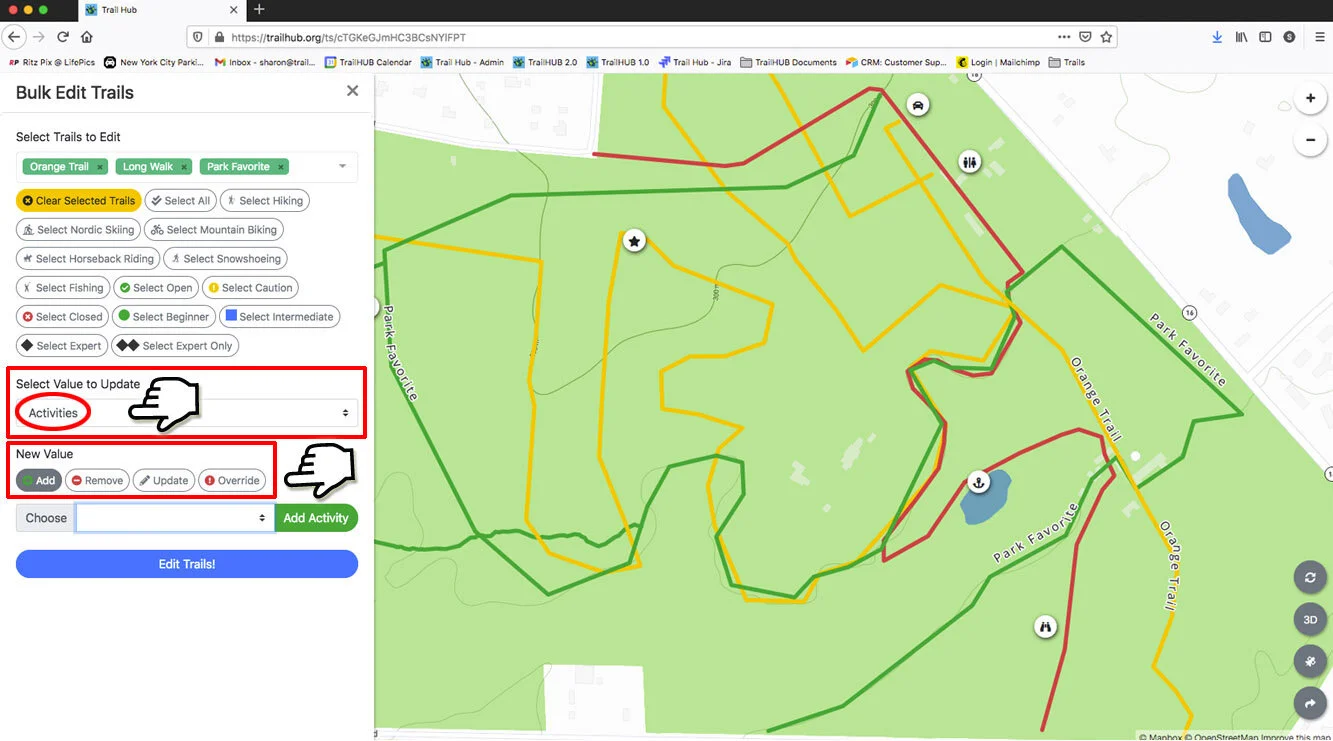
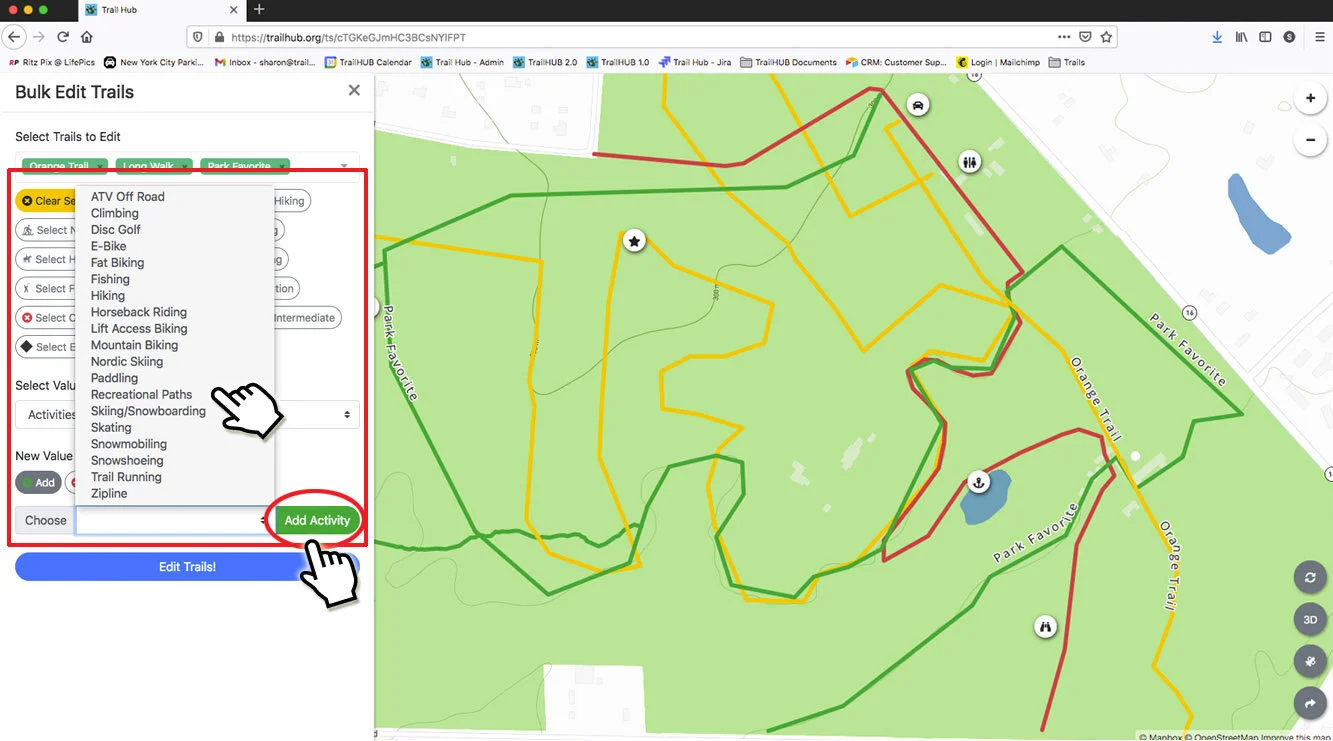
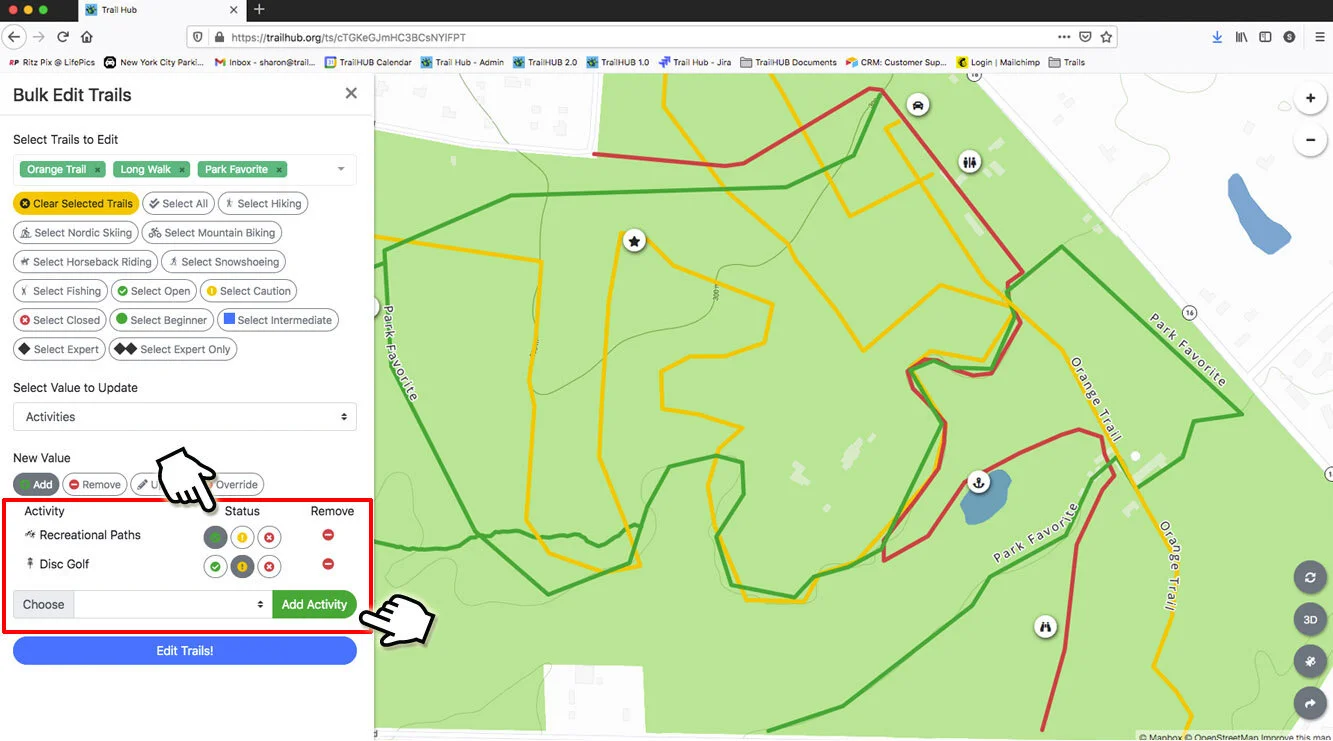
Then build the activity list: choose an activity from the dropdown, click Add Activity, and set its status (Open, Caution, or Closed). Status is ignored in Remove mode. Repeat for each activity, and use the red minus icon to take an activity off the list.
#Categories
Choose Add, Remove, or Override (same behavior as for activities), then pick the categories from the dropdown. Categories are managed in Trail system settings.
#Trail Hidden
Switch Trail Hidden on or off to hide the selected trails from, or show them to, the public.