
User Settings
An overview of the User Settings panel: account details, billing, trash, API keys, account deletion, My Trail Systems and your public account.
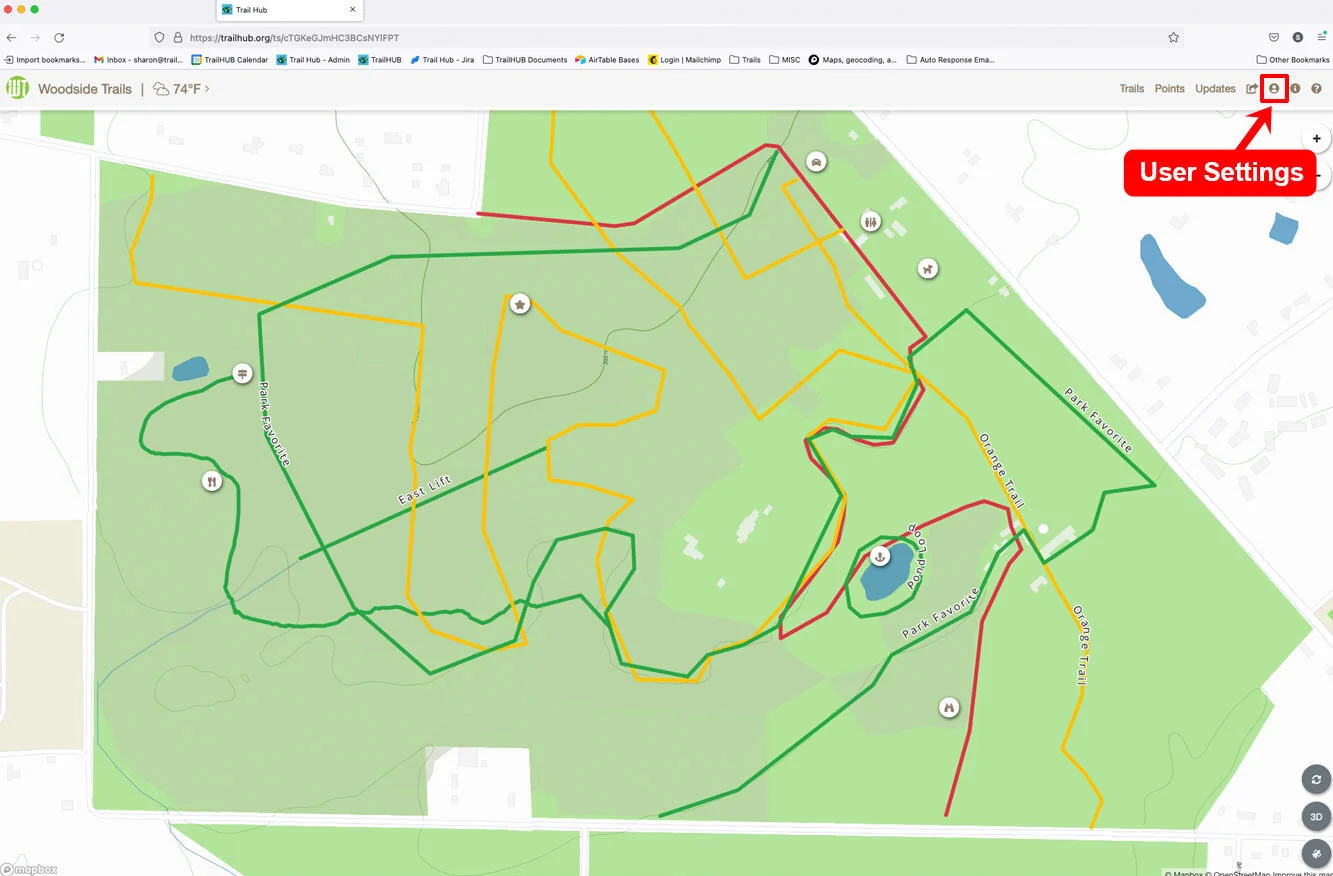
User Settings is the person icon in the navigation bar. It holds everything about your manager account, as opposed to Trail System Settings, which holds everything about one trail system.
#What's in the panel
At the top:
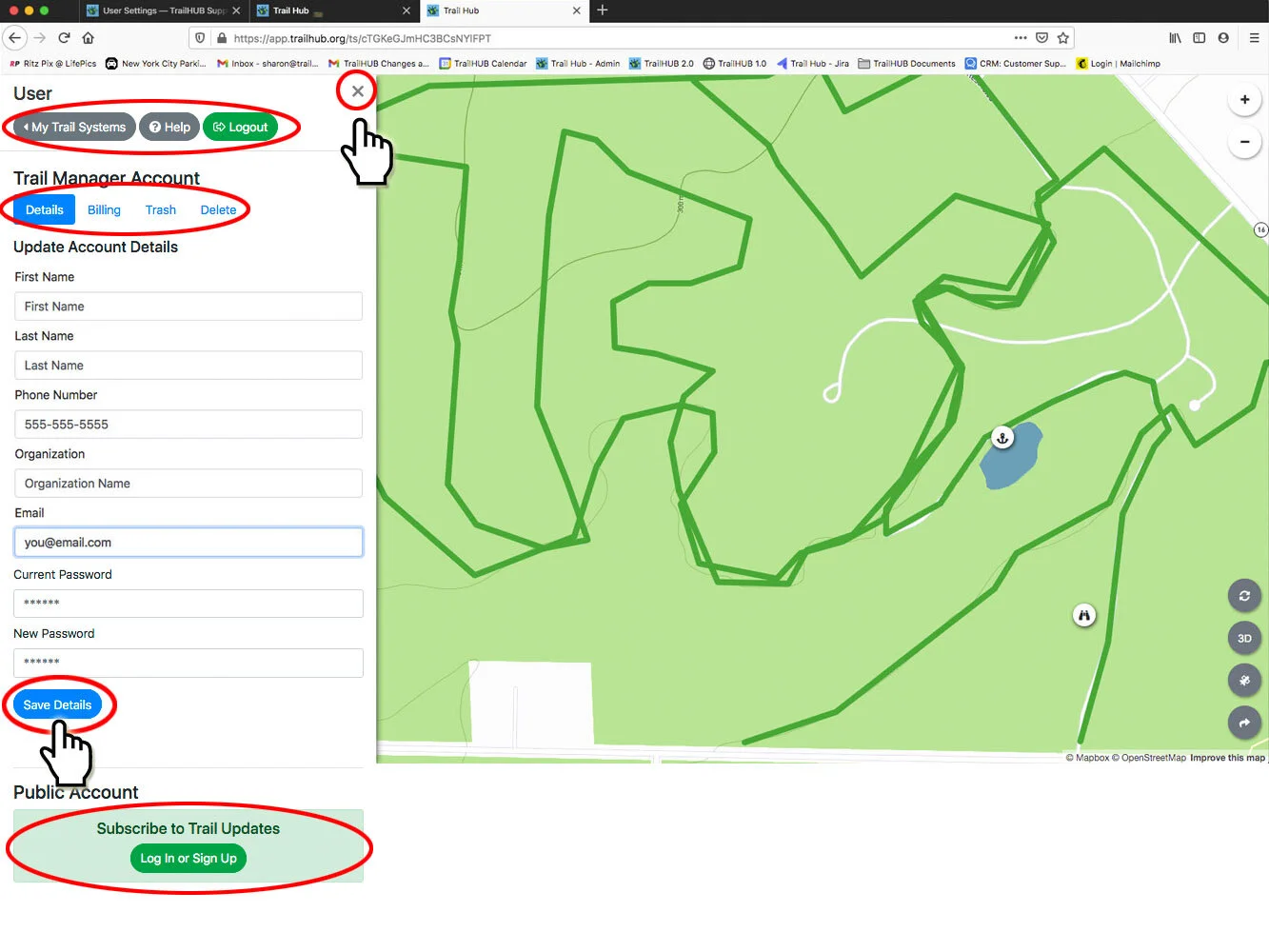
- My Trail Systems - the list of trail systems you own or are a trustee on. Open one, create a new one, or mark one as your default with the heart icon. See Managing multiple trail systems.
- Help - opens this documentation.
- Logout - see Log out.
Under Trail Manager Account, five tabs:
- Details - update your name, phone number, organization, email and password. See Update account details.
- Billing - see your current plan, choose a plan, or open the Stripe customer portal to change payment details or cancel. See Billing.
- Trash - view and restore trail systems, trails and points you have trashed. Each list loads when you select its View ... Trash button; select Restore next to an item to bring it back. A trail or point that belongs to a trashed trail system cannot be restored until the trail system is restored first.
- API Keys - create and revoke keys for the Management API and MCP server. See API keys.
- Delete - the Danger Zone. Delete Account permanently removes your manager login. Trash any trail systems, trails and points you want removed before deleting your account; you will not be able to afterwards. For security you may be asked to log out and back in before the deletion goes through.
Under Public Account:
- If you also want to follow trail systems and receive alerts as a member of the public, select Log In or Sign Up to create or sign in to a public account. Once signed in, your public user settings appear here.
#Steps
- Select User Settings in the navigation bar.
- Pick a tab and make your changes.
- On the Details tab, enter your Current Password and select Save Details to apply changes. Other tabs save immediately. Select the X to close the panel.
#In this section
- Update Account Details
Change the name, phone number, organization, email address or password on your TrailHUB manager account.
- Billing
Choose a TrailHUB plan, and update your payment method or cancel through the Billing tab in User Settings.
- Managing Multiple Trail Systems
Why and how to run more than one trail system under a single TrailHUB account, switch between them, set a default and copy trails across.