
Managing Multiple Trail Systems
Why and how to run more than one trail system under a single TrailHUB account, switch between them, set a default and copy trails across.
A trail system is one map and list of trails, with the activities (mountain biking, hiking, fat biking, Nordic skiing and so on) assigned to those trails. One manager account can own several trail systems, and you can also be a trustee on trail systems owned by others.
Two common reasons to use more than one trail system:
- You manage two or more genuinely separate trail networks.
- You have a lot of trails across several activities and want to give each audience a simpler map.
The number of trail systems you can own depends on your plan: 2 on Square/Circle, 4 on Diamond/Triangle, 8 on Double Diamond/Star. See Plans and pricing.
#Deciding how many you need
Think about:
- how many physical trail networks you manage
- how many trails and activities you manage
- what is easiest for your audience to navigate
Trail systems can be linked to each other as related trail systems, so visitors can hop between them from the navigation bar and the Trail System Details panel. You can also hide a trail system from the TrailHUB directory when it is out of season.
If your trails are all in one place and differ only by activity, you may not need separate systems at all: visitors can filter a single trail system by activity, and you can set a Default Activity or Hide Activities in Trail System Settings.
#Examples
Two trail systems, by season
- Winter (fat biking, Nordic skiing, snowshoeing)
- Non-winter (mountain biking, hiking, trail running)
Four trail systems, by activity
- Mountain biking
- Hiking and trail running
- Fat biking
- Nordic skiing and snowshoeing
Eight trail systems, by club network
- Club name - Trail system 1
- Club name - Trail system 2
- ... up to eight
#Switch between or create trail systems
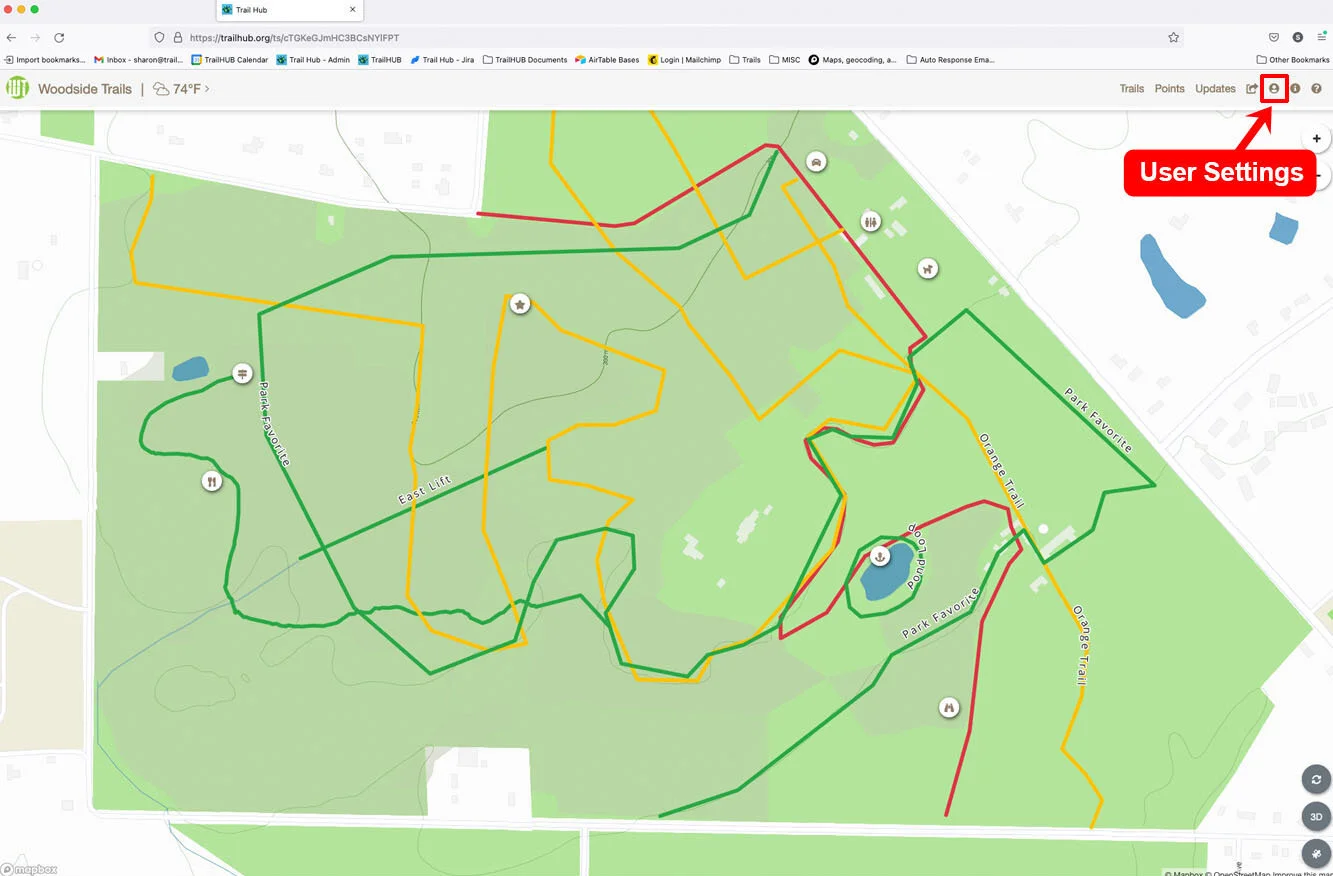
- From the map, select User Settings in the navigation bar.
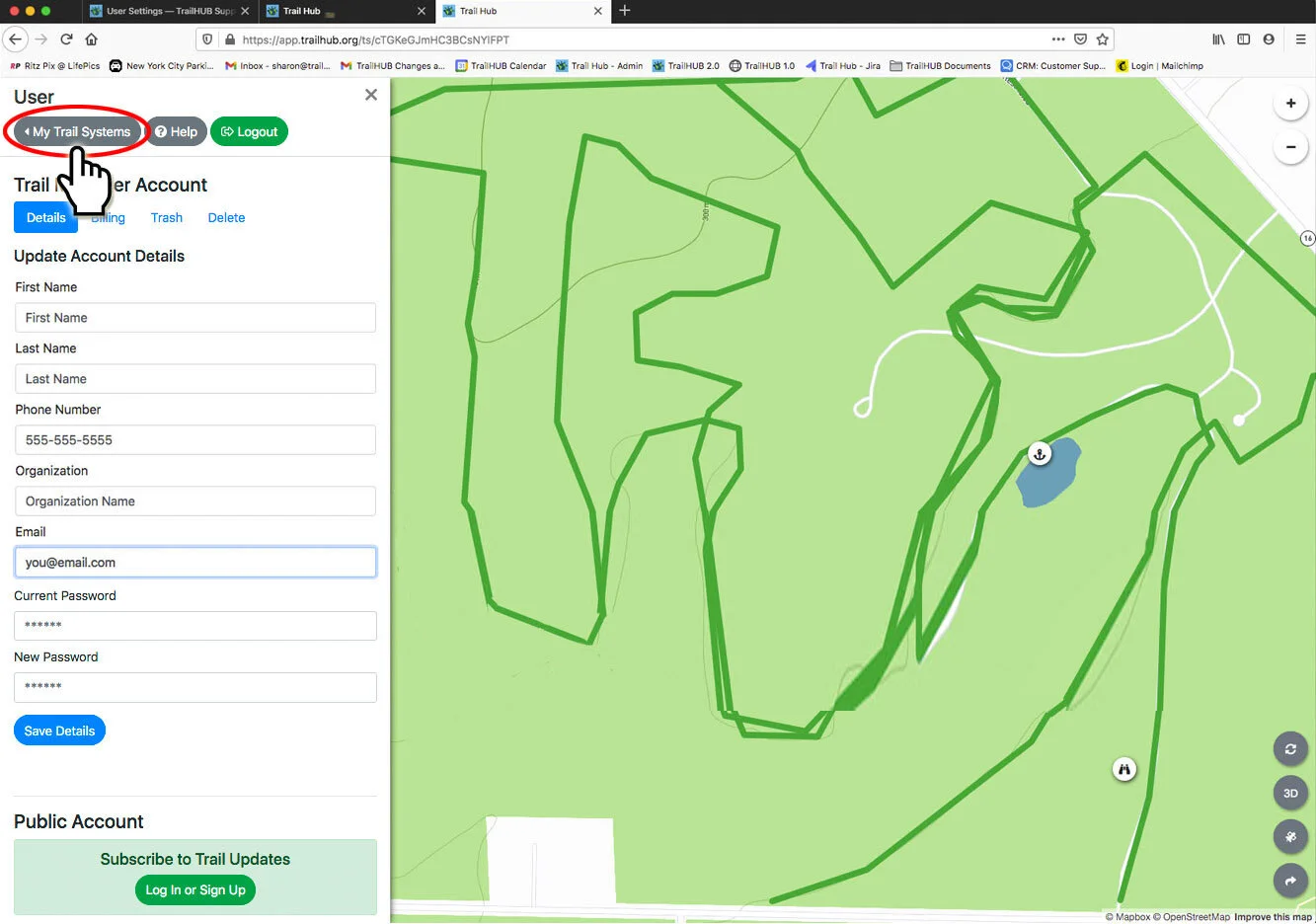
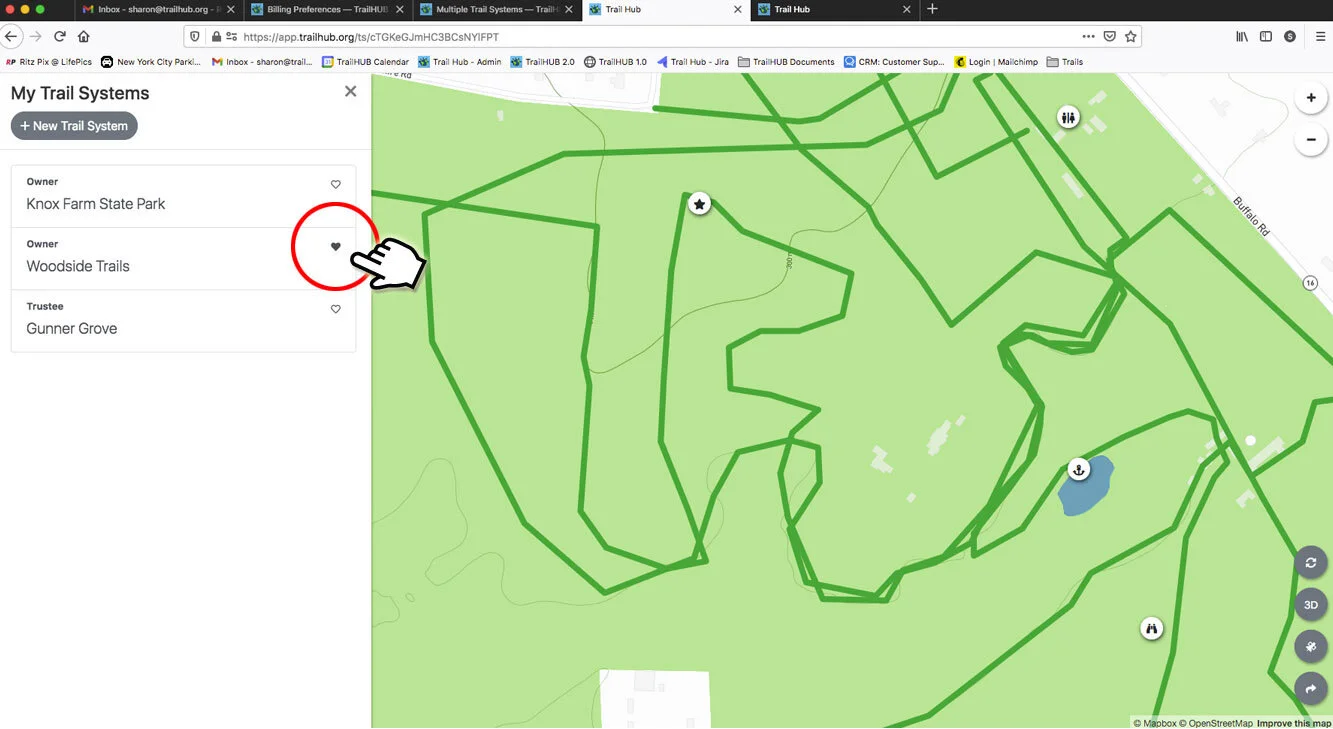
- Select My Trail Systems. Each card shows your role on that system: Owner, Administrator or Trustee.
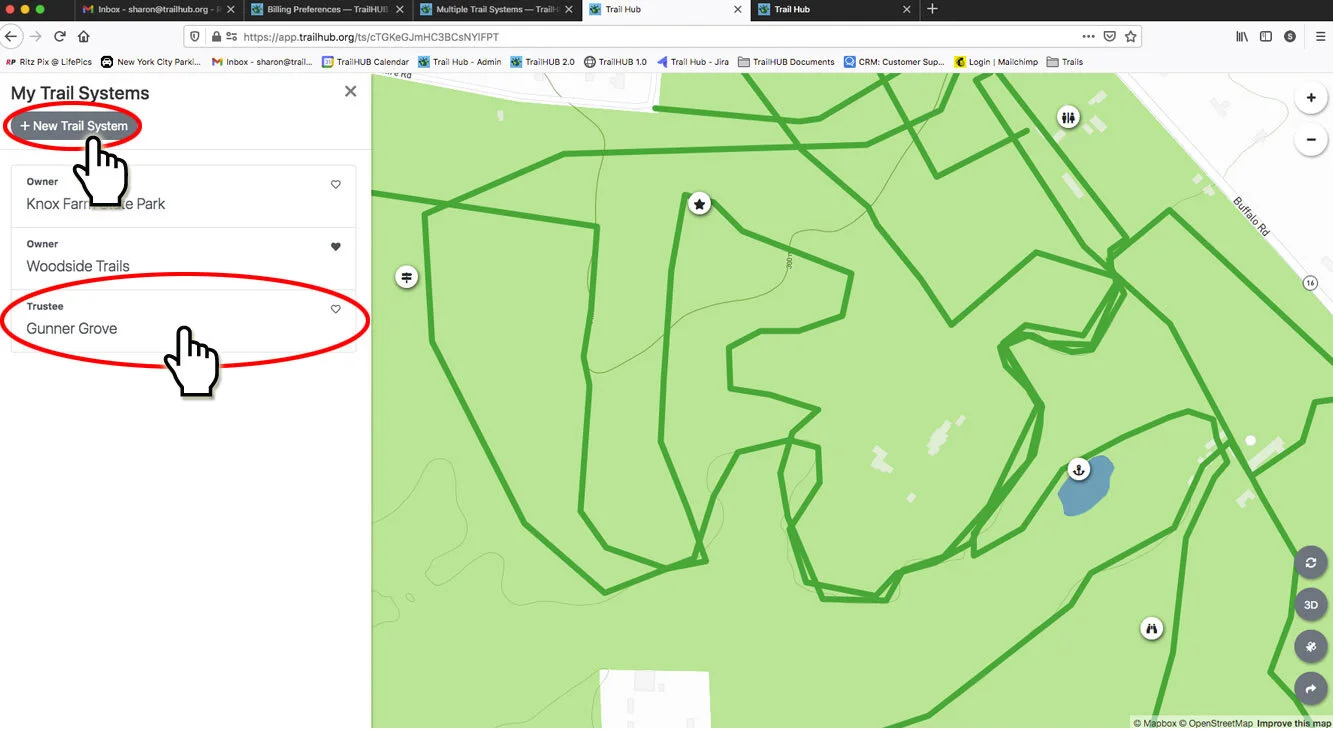
- Select a trail system name to open it, or select New Trail System to create another.
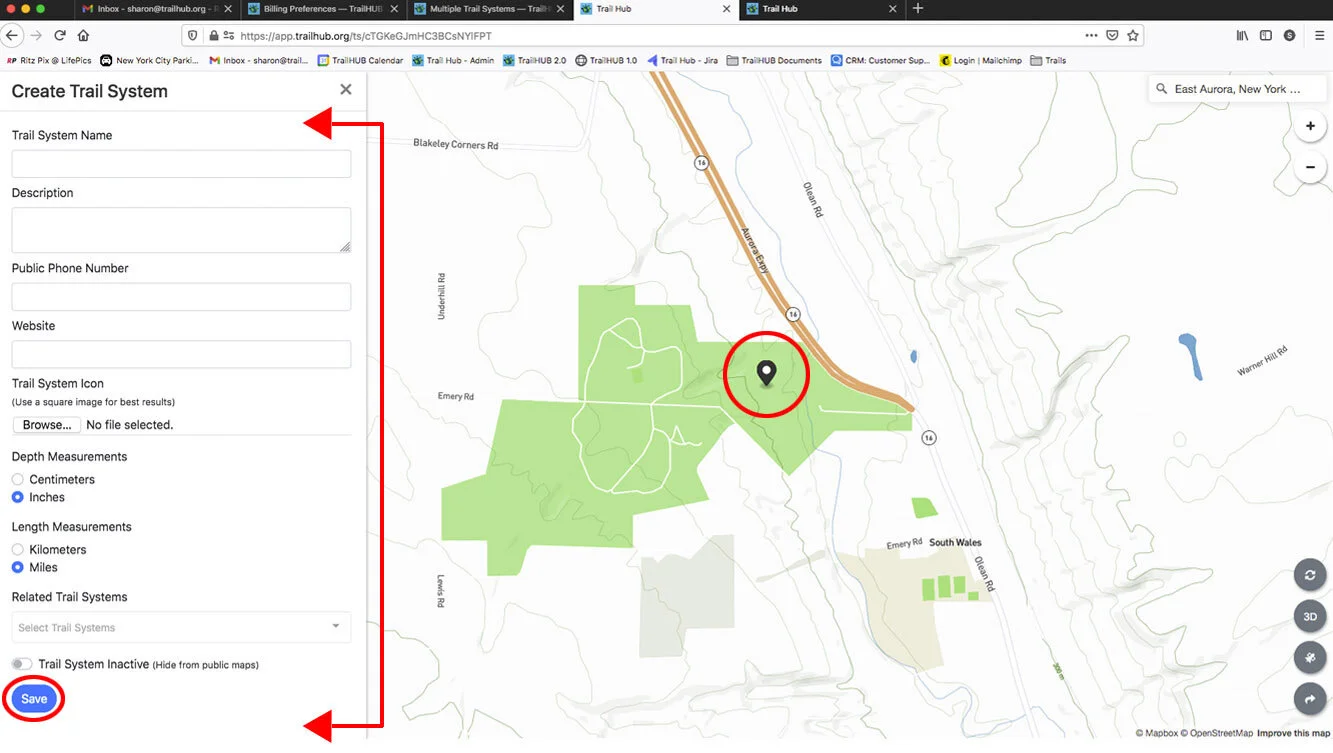
- If creating a new one, fill in the form, click the map to set its default location, and select Save. New trail systems start hidden from the directory (Trail System Inactive on).
- To choose which trail system opens when you log in, select the heart icon on its card. The filled heart marks your current default.
#Copy a trail to another trail system
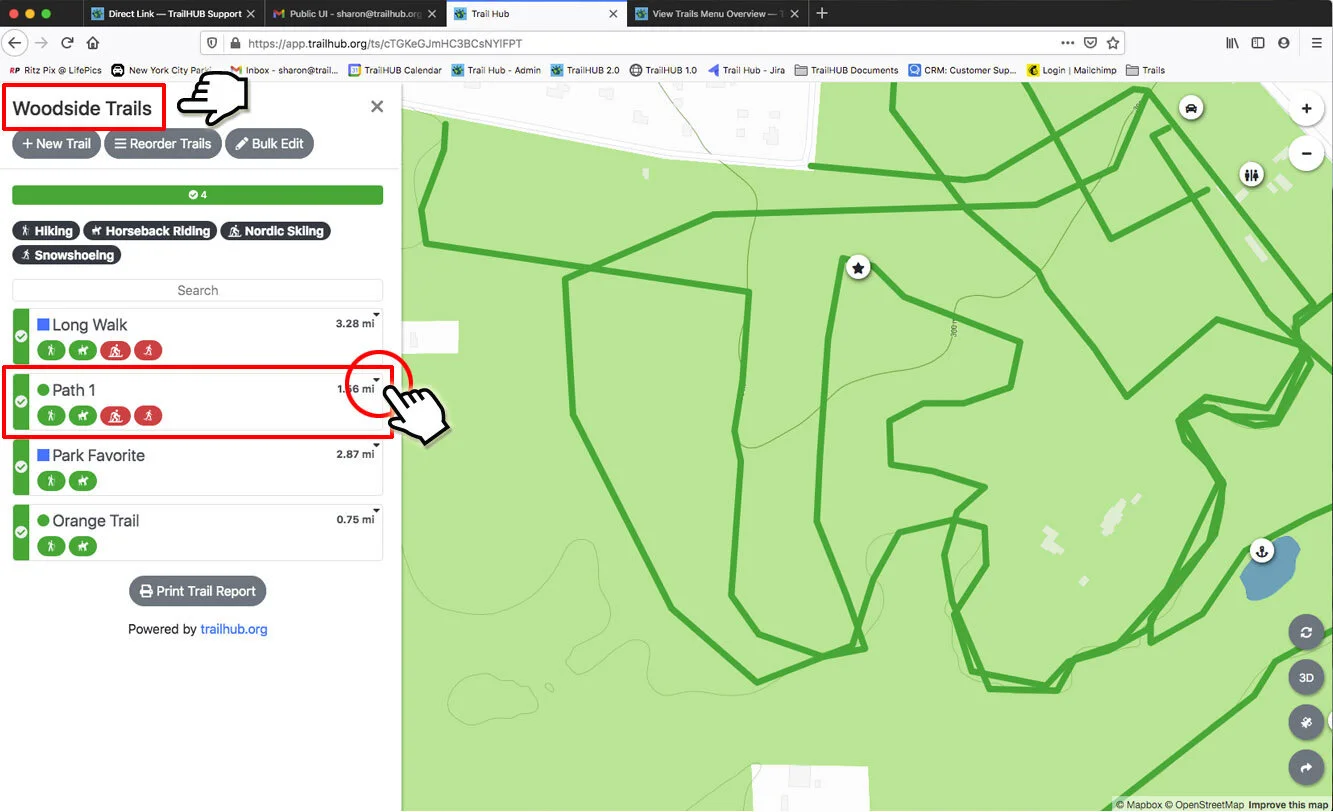
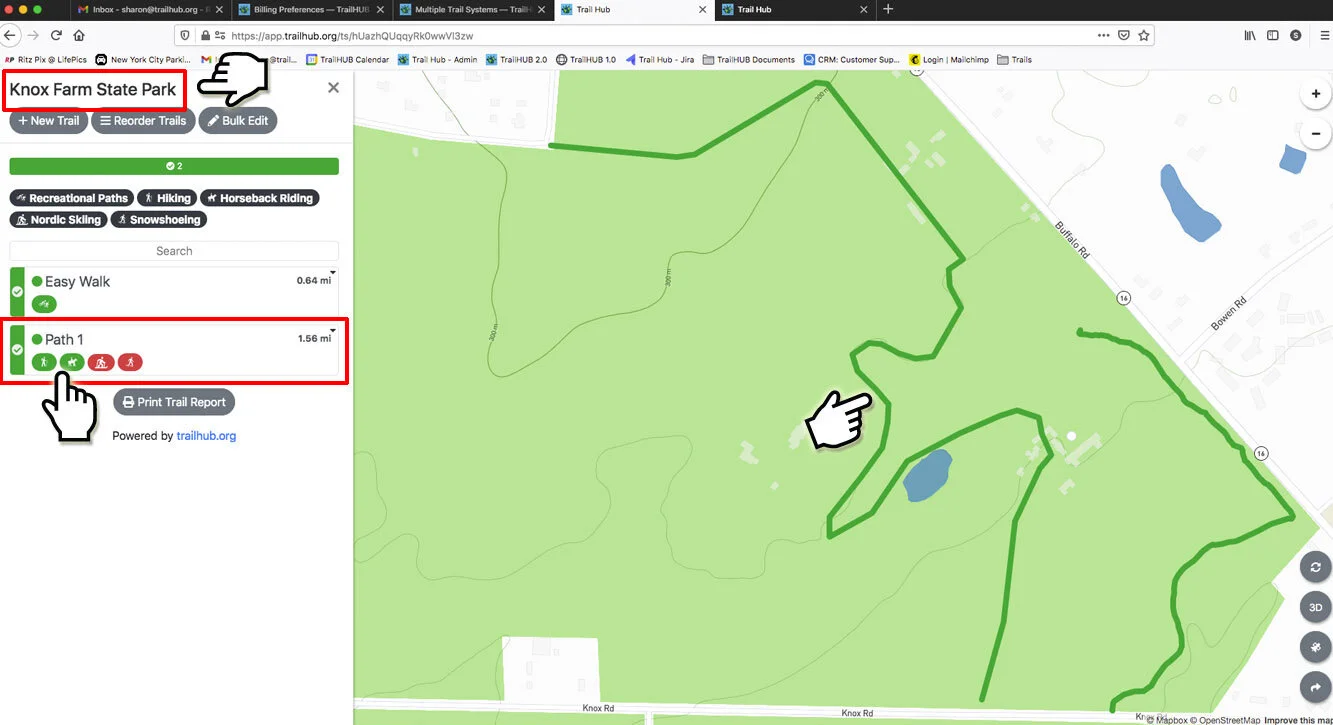
- Open the Trails list in the trail system that has the trail.
- Find the trail you want to copy.
- Select the down-facing caret in the upper right of the trail card.
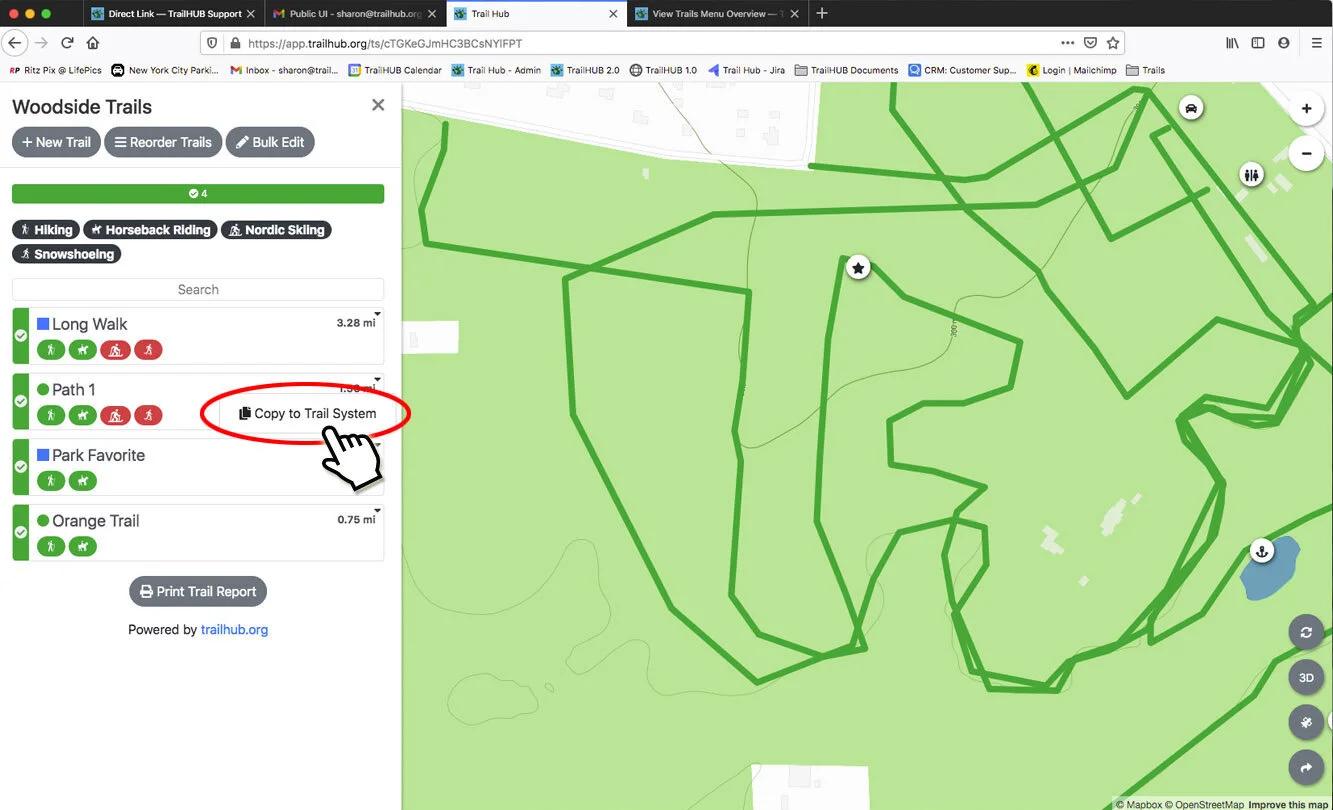
- Select Copy to Trail System.
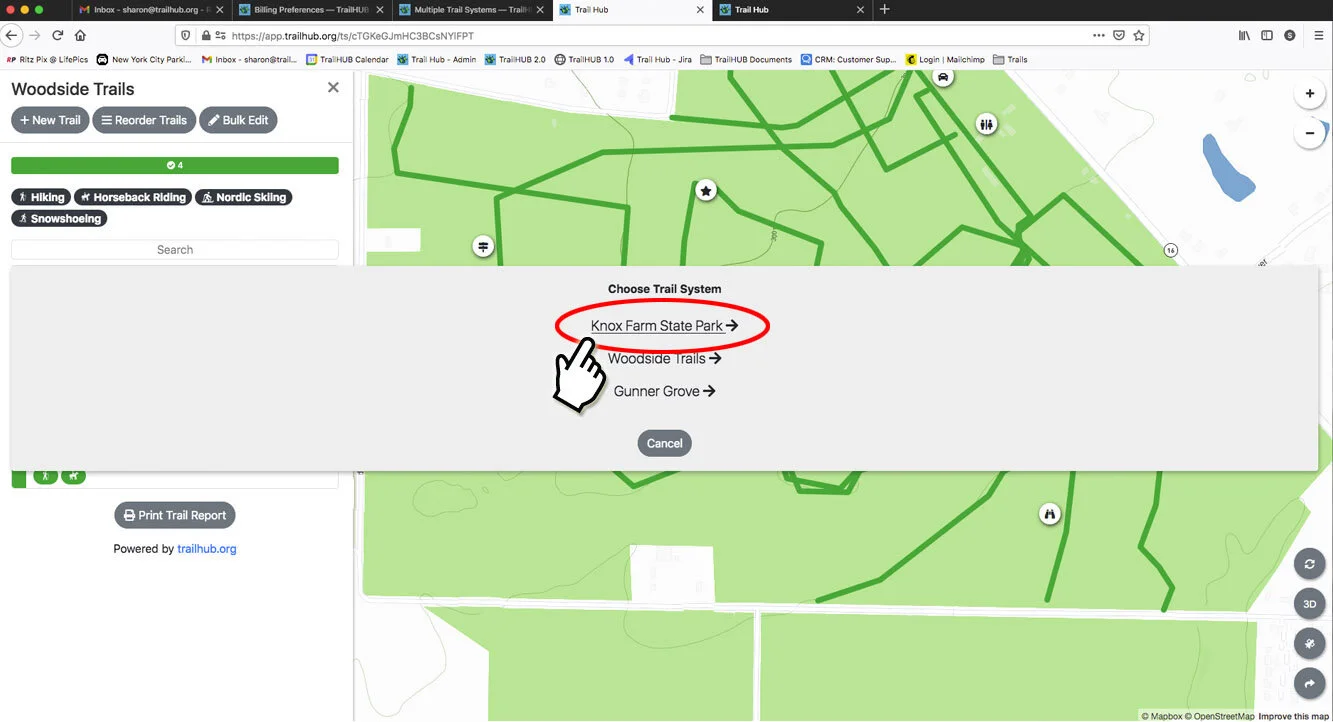
- Select the destination trail system.
- The trail, including its map geometry, is copied. The two copies are independent from then on: edit each as needed, or delete the original if you only wanted to move it.
Trustees are per trail system. If the same people help with several of your systems, invite them to each one; see Trustees.