
Using TrailHUB on Your Phone
TrailHUB works in any phone browser; add it to your home screen on iOS or Android for one-tap access to your trail systems.
TrailHUB does not have a phone app in the app stores; the original mobile app has been discontinued. Everything, including maps, live trail statuses, updates, subscriptions, and email/SMS alerts, works in your phone's web browser at trailhub.org.
For an app-like experience, add TrailHUB to your home screen. You get an icon that opens straight to TrailHUB, and the map can show your current location on the trails when you allow location access.
Trail managers: a separate Grooming Tracker app for recording grooming tracks is in beta. See Grooming Tracker.
#iPhone and iPad (Safari)
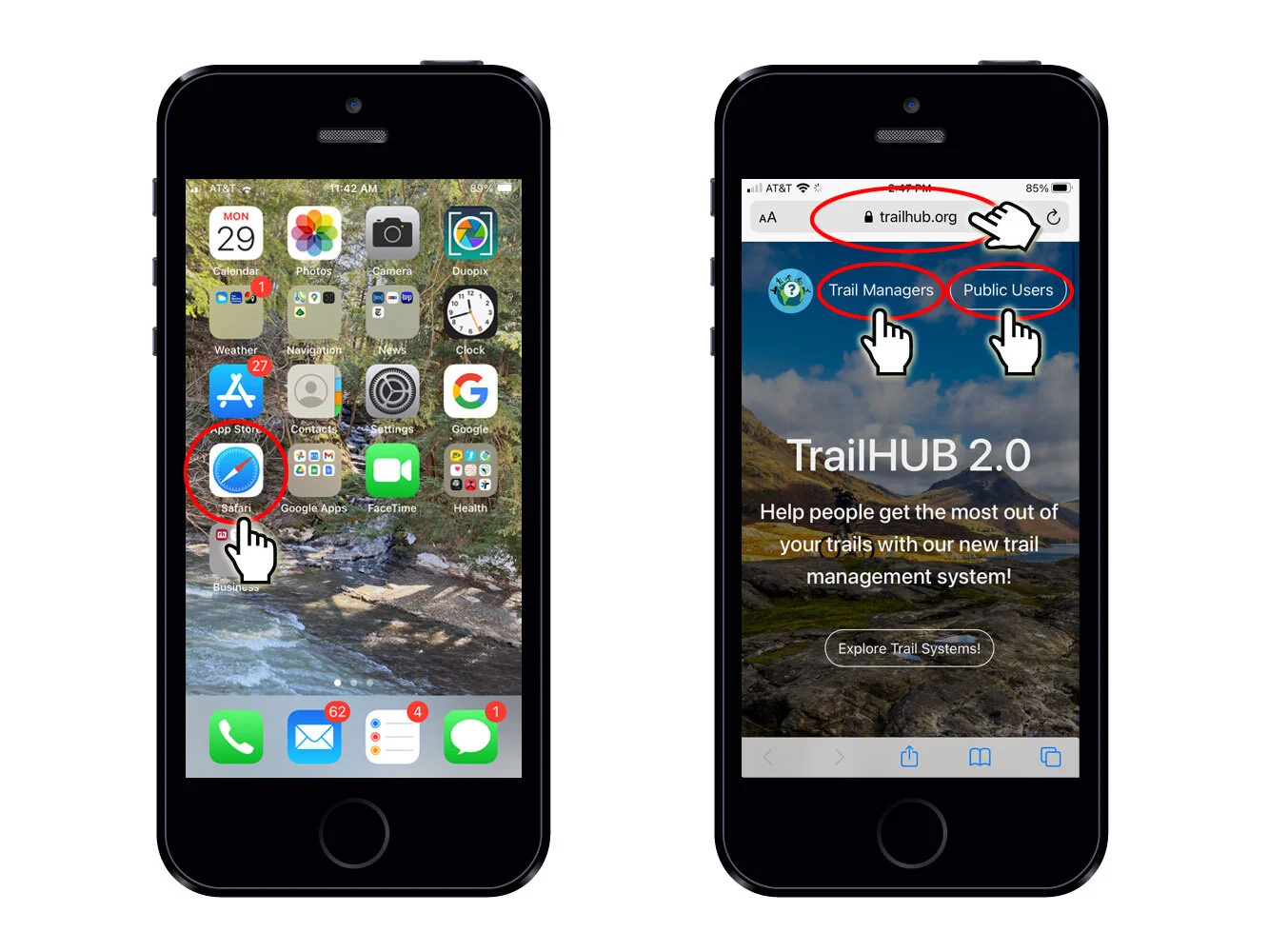
- Open Safari and go to trailhub.org. Sign in to your public or trail manager account, or open the trail system you want to keep handy.
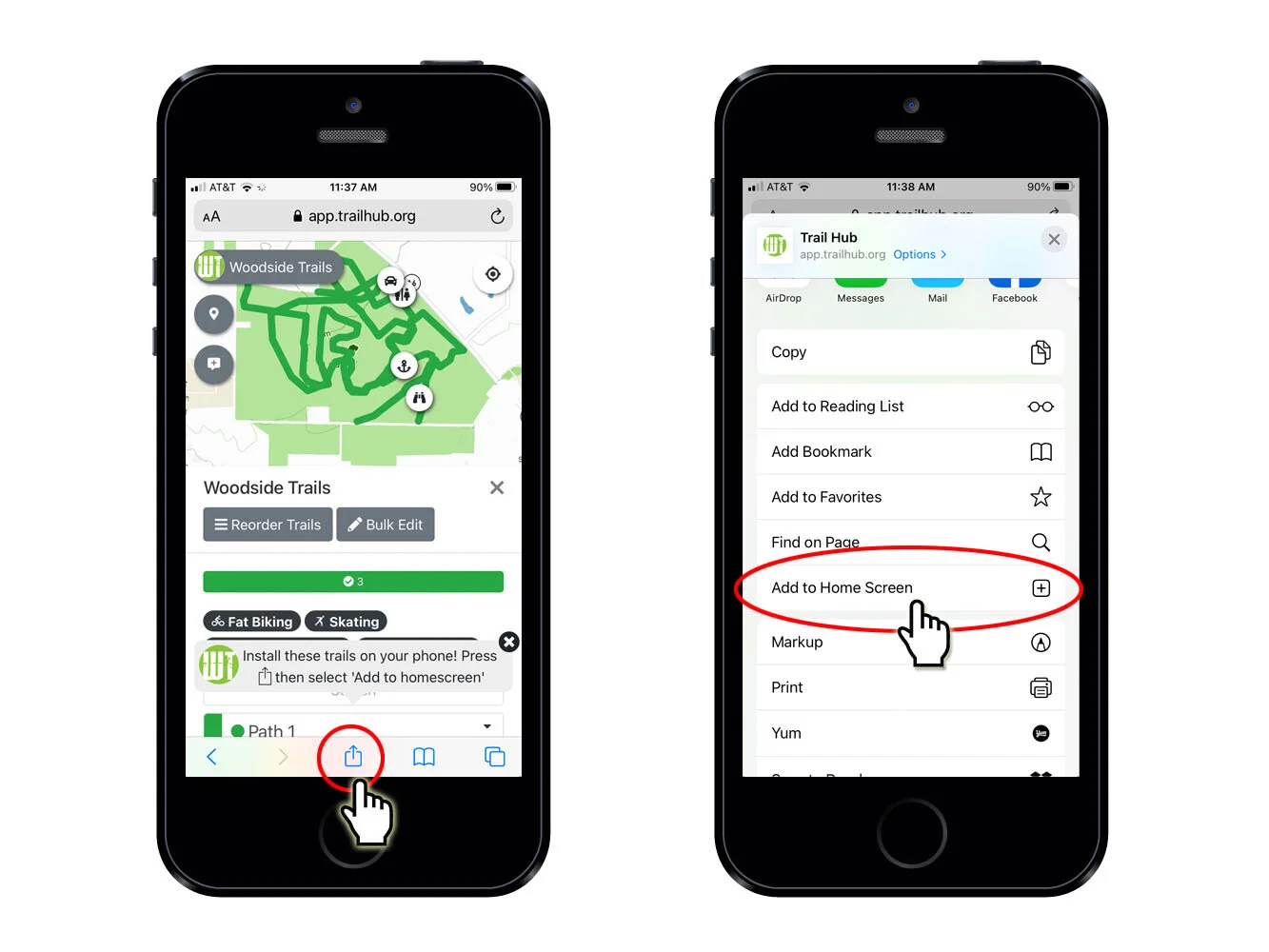
Tap the Share button in the toolbar.
Tap Add to Home Screen, then Add.
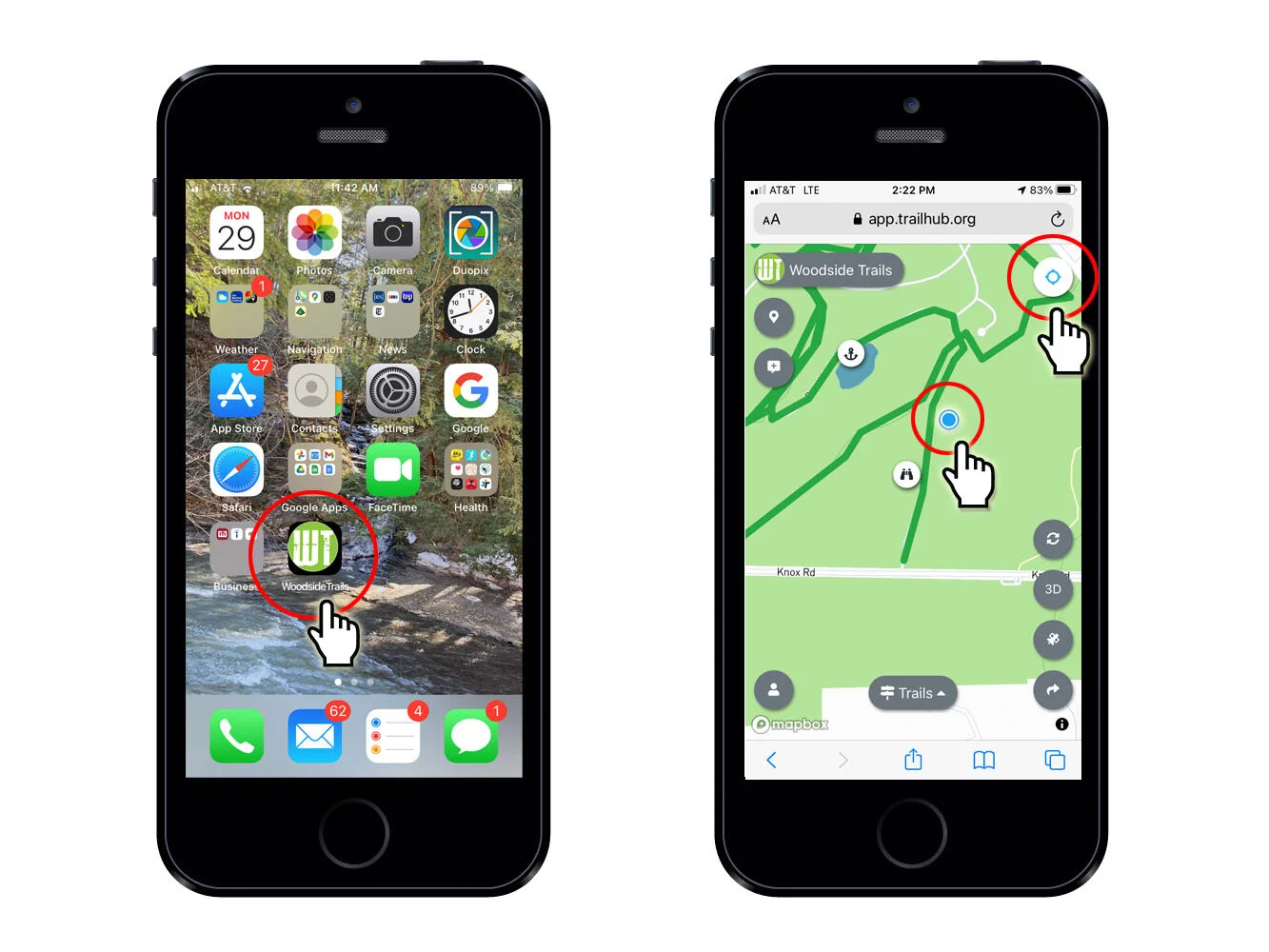
The TrailHUB icon now appears on your home screen. Tap it to open TrailHUB.
On a trail system map, tap the location icon to let TrailHUB show where you are on the trails.
#Android (Chrome)
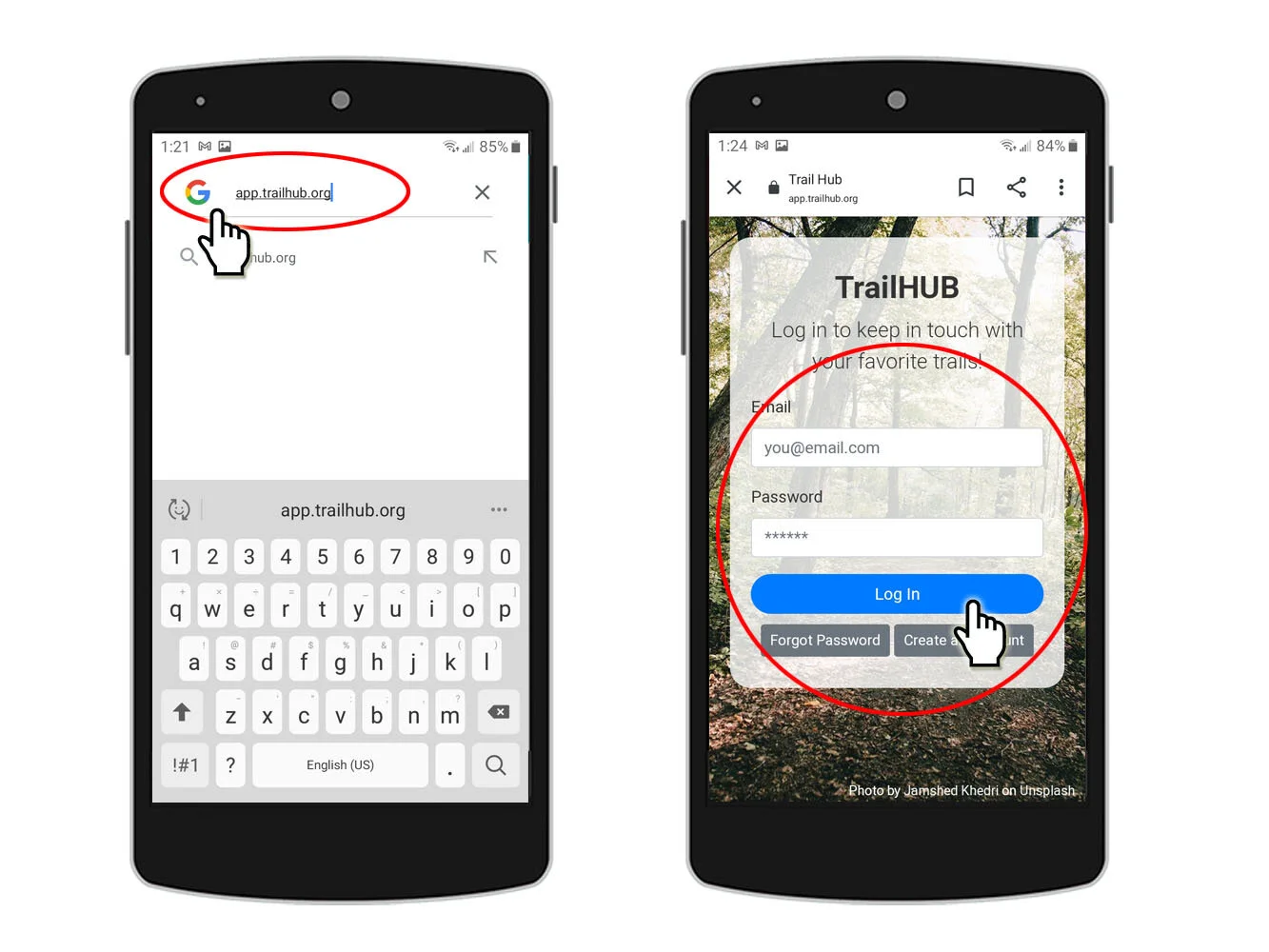
- Open Chrome and go to trailhub.org. Sign in to your public or trail manager account, or open the trail system you want to keep handy.
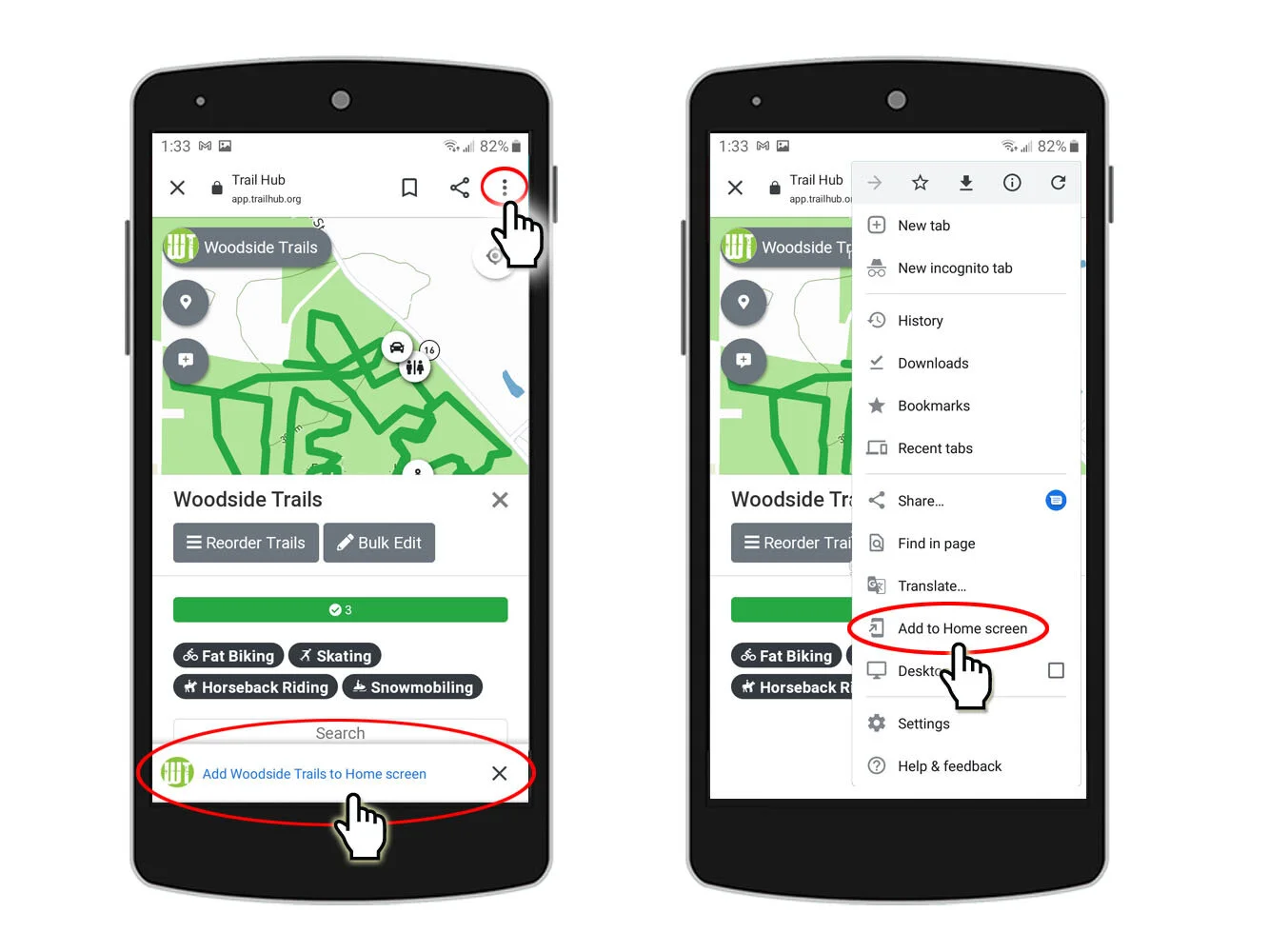
- If an Add to Home screen prompt appears at the bottom of the screen, tap it. Otherwise tap the three-dot menu in the upper right and choose Add to Home screen.
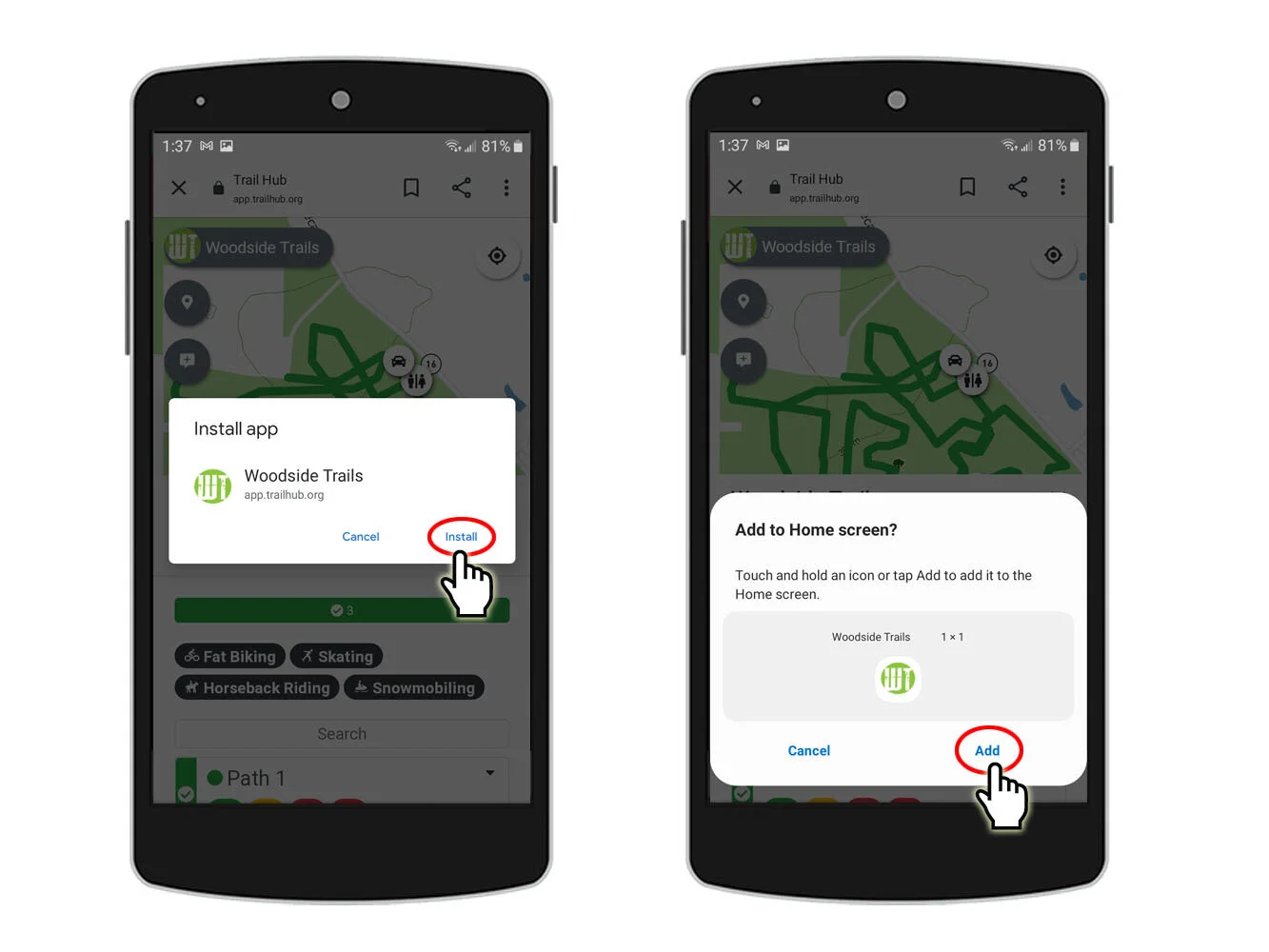
- Tap Install (or Add), then Add again to confirm.
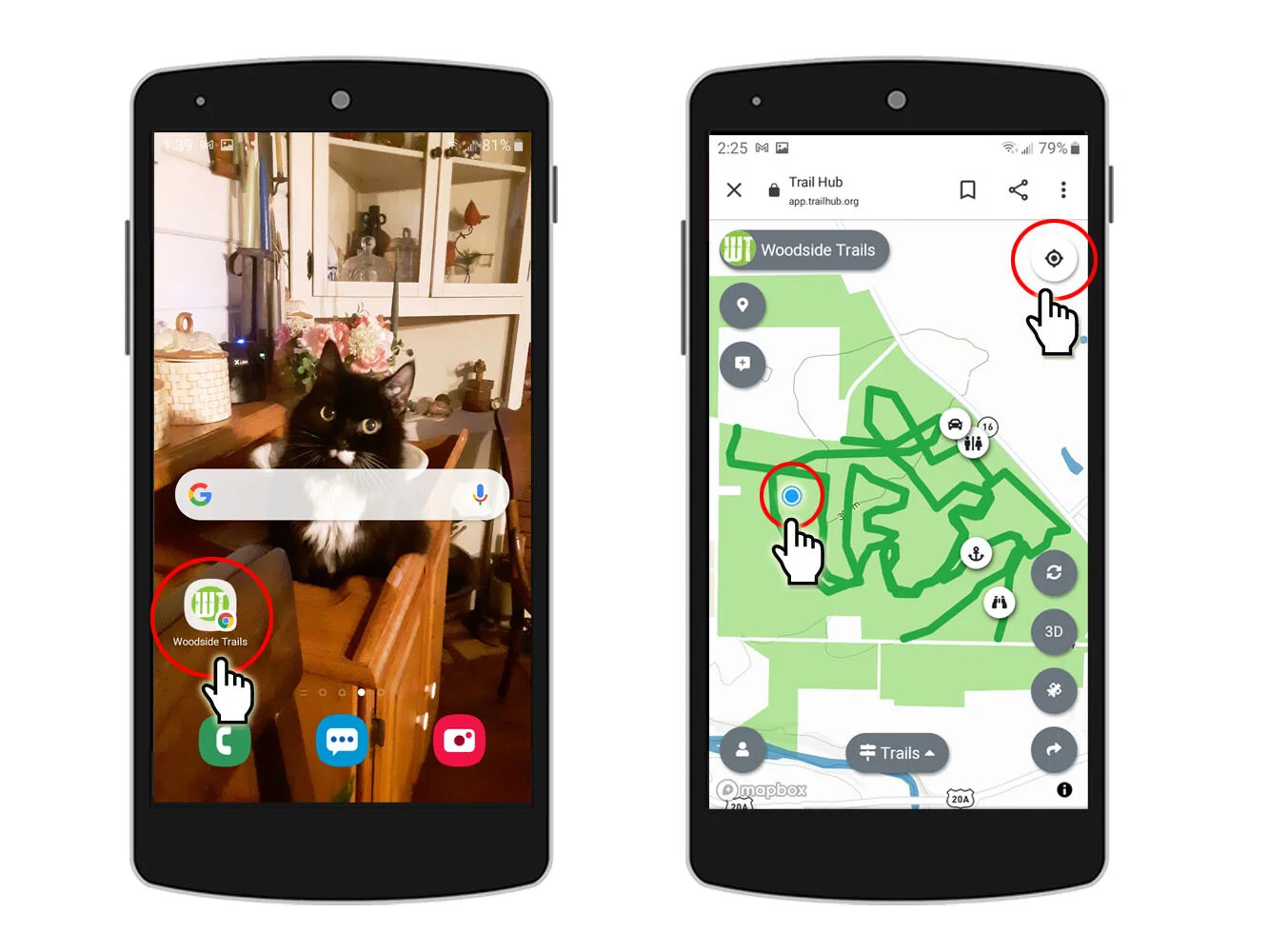
The TrailHUB icon now appears on your home screen. Tap it to open TrailHUB.
On a trail system map, tap the location icon to let TrailHUB show where you are on the trails.
#Your own app?
If your organization has its own app, TrailHUB's Public Read API lets you show your live trail data inside it.