
Related Trail Systems
Link trail systems together so visitors can jump between them from the navigation bar and the Trail System Details panel.
If your organization runs several trail systems, or you want to point visitors to a neighbouring network, add them as Related Trail Systems. Links appear in two places on the public interface:
- a Related Trail Systems drop-down in the navigation bar (a scrolling list on phones)
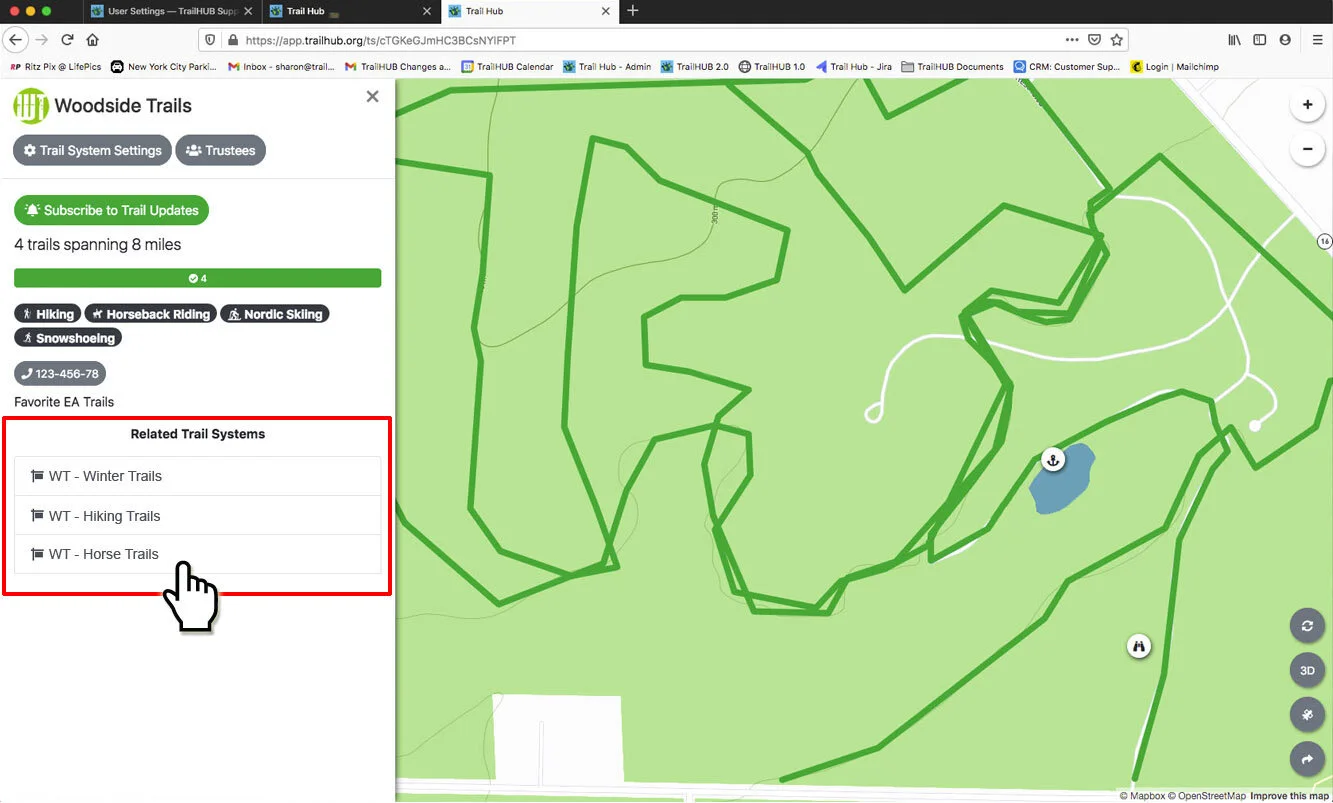
- a Related Trail Systems list at the bottom of the Trail System Details panel
You can link to any active trail system on TrailHUB, not only your own. Links are one-way: add the reverse link on the other trail system if you want visitors to be able to come back.
#Steps
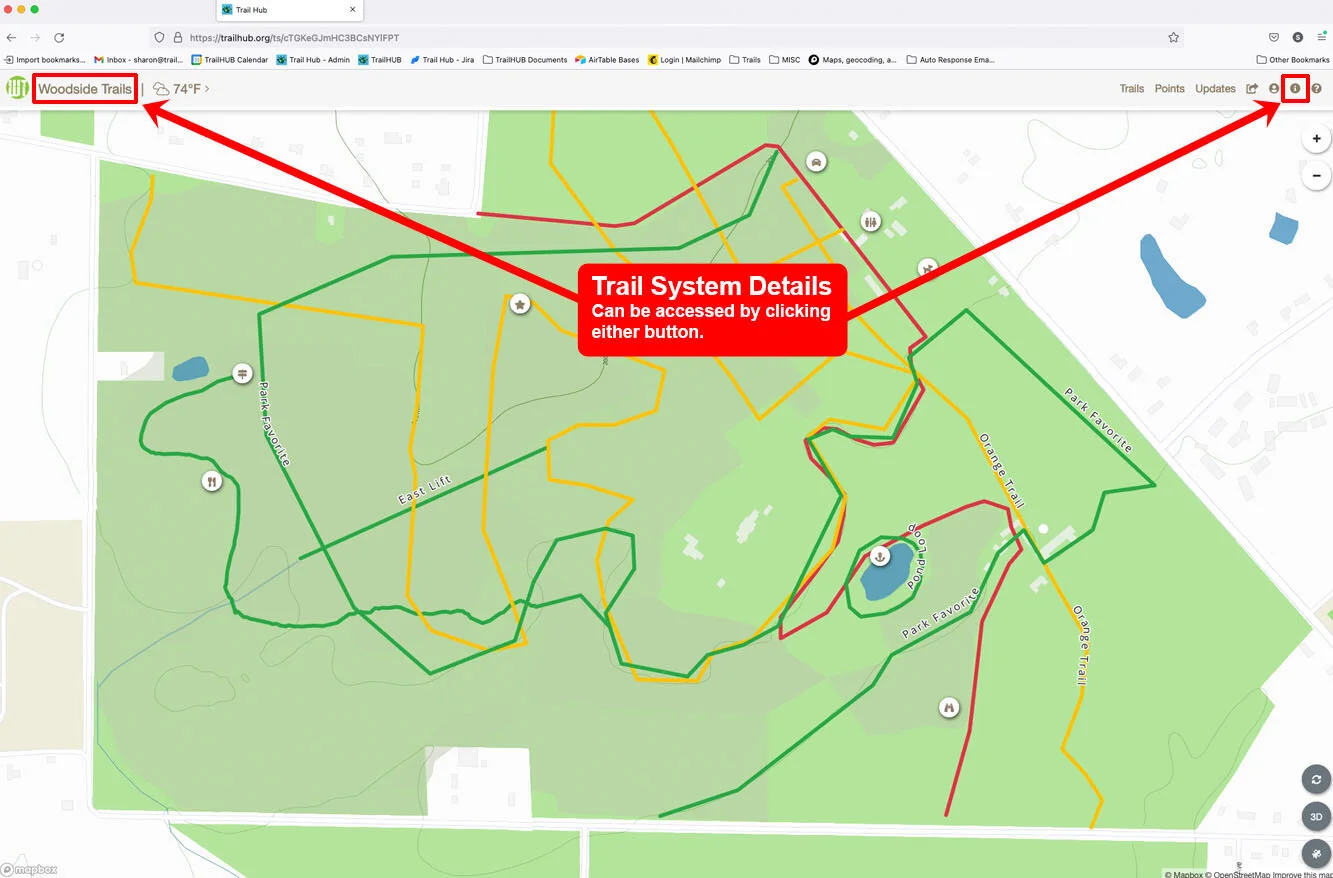
- Select Trail System Details in the navigation bar.
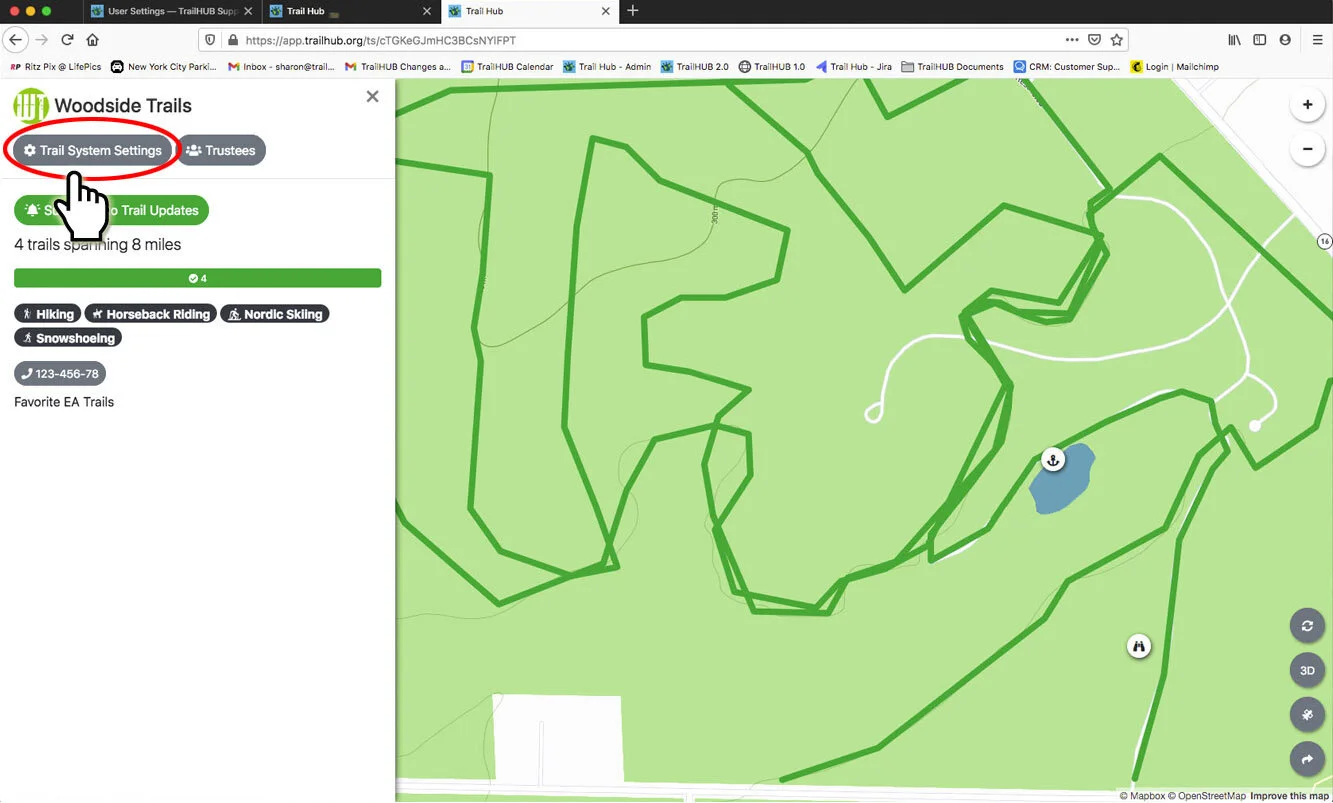
- Select Trail System Settings (owner and administrators only).
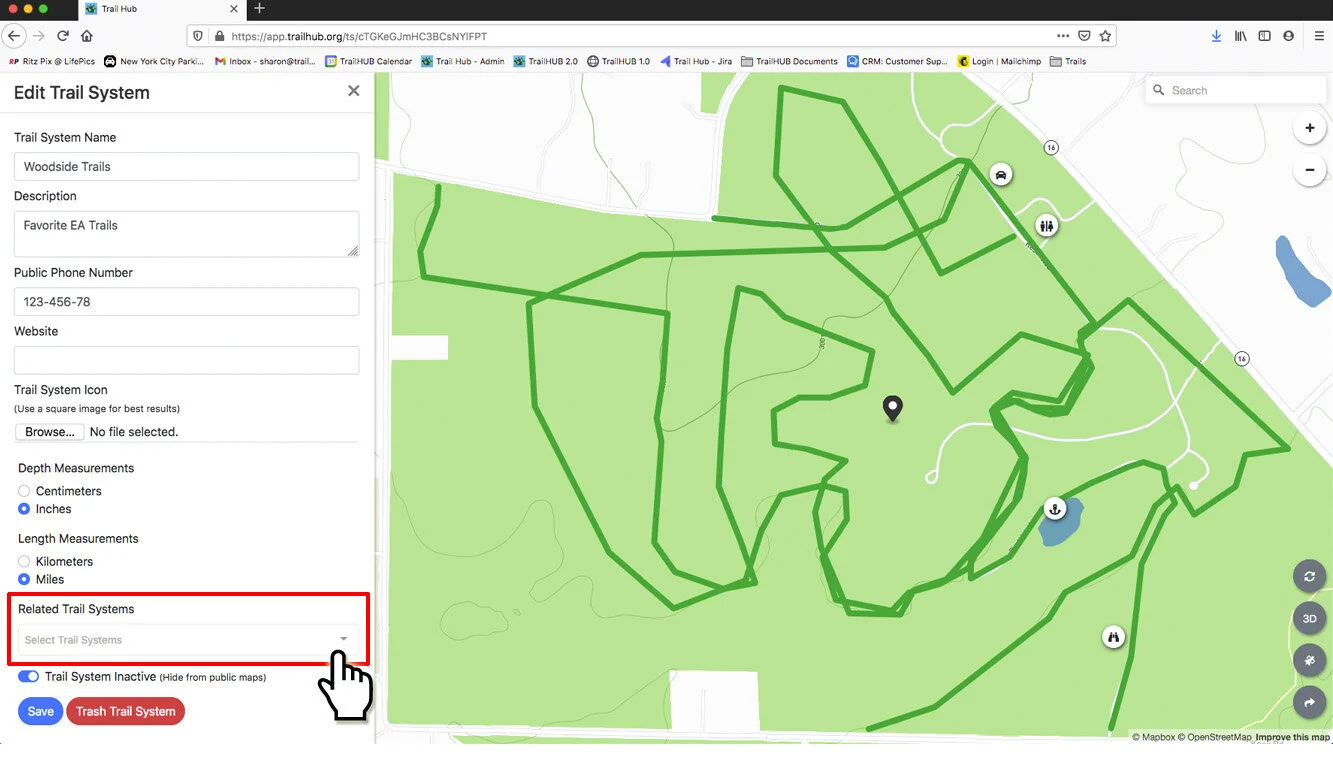
- Scroll to Related Trail Systems and click the Select Trail Systems field. Start typing to search the list of active trail systems, and select each one you want. Select the x on a tag to remove it.
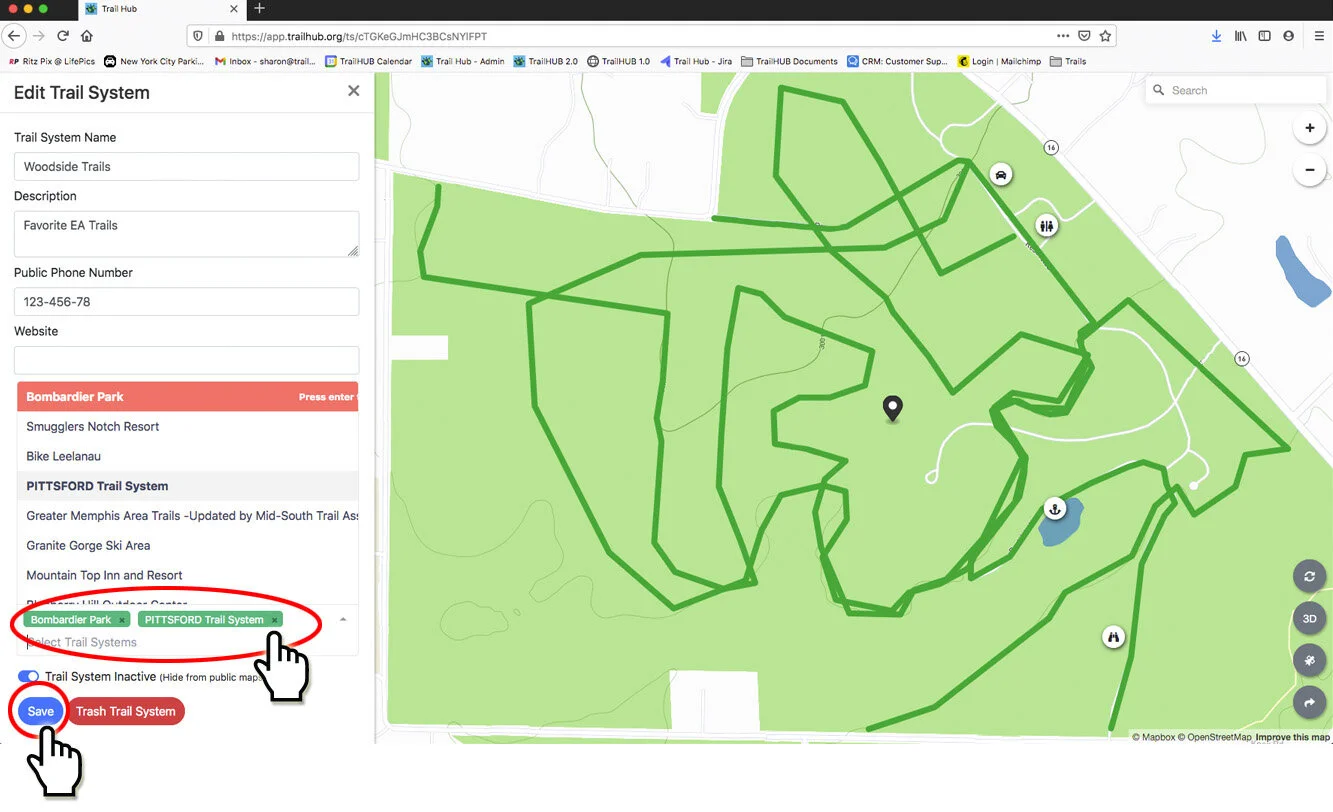
- Select Save.
- The linked trail systems now appear in the navigation bar and in Trail System Details.
#Notes
- The search list only includes trail systems that are active (not hidden) and have an active subscription. It is rebuilt every three hours, so a brand-new or newly un-hidden trail system may take a few hours to appear.
- The Link to browse all of TrailHUB in navbar switch, just below Related Trail Systems, adds a link to the public directory of all trail systems. Turn it off if you prefer visitors stay within your own systems.